A Bluetooth dongle for an Xbox controller allows PC gamers to connect compatible Xbox Wireless Controllers wirelessly to their computer, especially if the PC lacks built-in Bluetooth or has an older Bluetooth standard. These small USB devices bridge the gap, enabling wireless gameplay with models like Xbox Series X|S and newer Xbox One S/X controllers, which feature integrated Bluetooth technology.
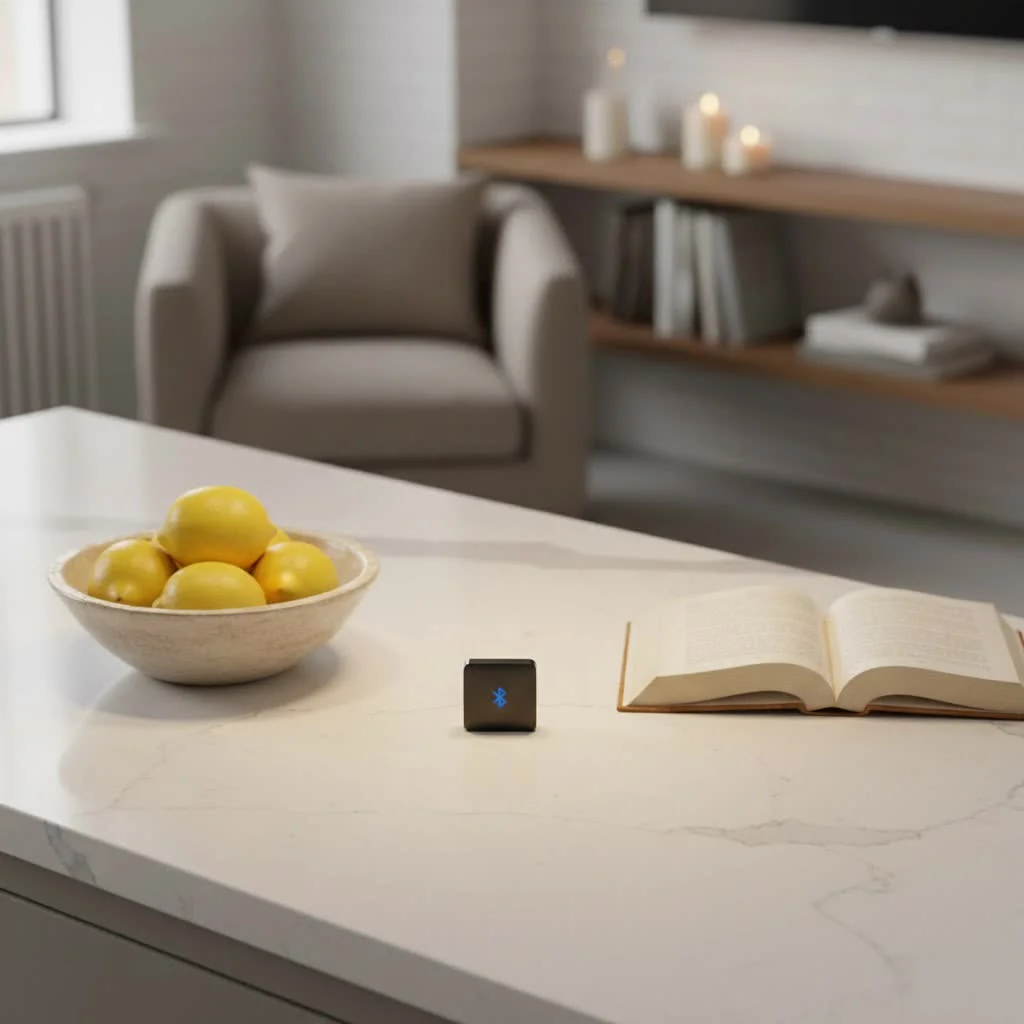
As an expert in wireless technologies, I’ve seen countless setups, and while some PCs come with integrated Bluetooth, many require an external dongle to unlock wireless controller connectivity. This article will dive deep into everything you need to know, from choosing the right dongle to troubleshooting common issues, ensuring your Xbox controller connects smoothly and reliably for uninterrupted gameplay. For complete bluetooth dongles library on this site.
Understanding Your Xbox Controller: Does It Have Bluetooth?
Before you even think about a bluetooth dongle for your Xbox controller, it’s crucial to know if your specific controller model actually supports Bluetooth. Not all Xbox Wireless Controllers are created equal in this regard.
How to Identify Bluetooth-Enabled Controllers:
- Xbox Series X|S Controllers and Newer Xbox One S/X Controllers: These controllers do come with built-in Bluetooth capability. You can usually identify them by looking at the plastic around the Xbox button. If the plastic surrounding the Xbox button is part of the main faceplate of the controller (the same piece of plastic as the triggers), it has Bluetooth.
- Older Xbox One Controllers (Pre-2016) and Xbox 360 Controllers: Unfortunately, these older models do not include built-in Bluetooth. They rely on Microsoft’s proprietary wireless technology and thus require the dedicated Xbox Wireless Adapter for PC, not a generic Bluetooth dongle, for wireless play. Trying to connect these with a standard Bluetooth dongle simply won’t work.
Knowing your controller’s capabilities is the first and most critical step in determining your needs. If your controller supports Bluetooth, a dongle is a viable and often cost-effective solution for PC connectivity.
Why You Might Need a Bluetooth Dongle for Your PC
Even if your Xbox controller boasts built-in Bluetooth, your PC might still be the weak link. Here are the primary reasons why a bluetooth dongle for your Xbox controller could be an indispensable upgrade for your setup:
- Your PC Lacks Built-in Bluetooth: Many desktop PCs, especially custom builds or older models, don’t come with integrated Bluetooth radios. Laptops usually have it, but it’s not a universal feature for all computers. A USB Bluetooth dongle quickly and easily adds this functionality.
- Upgrading Older Bluetooth Versions: Perhaps your PC has Bluetooth, but it’s an older standard like Bluetooth 2.0 or 3.0. While it might connect, you could experience performance issues such as increased input lag, shorter range, or frequent disconnections. Upgrading to a Bluetooth 4.0, 5.0, or even 5.3 dongle can significantly improve stability, range, and responsiveness. “Modern Bluetooth versions like 5.0 and above offer enhanced speed, broader range, and improved power efficiency, which translates directly into a more stable and responsive gaming experience,” states Dr. Liam O’Connell, Lead Wireless Engineer at Qisac Labs.
- Dedicated Connection: Sometimes, having a dedicated external Bluetooth dongle can offer a cleaner signal path and reduce interference compared to an internal, often shared, wireless chip.
Choosing the Right Bluetooth Dongle for Your Xbox Controller
Selecting the perfect bluetooth dongle for your Xbox controller isn’t just about picking the cheapest option. Several factors influence performance and compatibility, making an informed choice crucial for a smooth gaming experience.
Bluetooth Version: The Higher, The Better
|
Our Picks for the Best Bluetooth Dongle in 2026
As an Amazon Associate I earn from qualifying purchases.
|
||
| Num | Product | Action |
|---|---|---|
| 1 | Avantree DG45 USB Bluetooth Adapter Dongle for PC, Computer, Desktop & Laptop, Compatible with Windows 11/10/8.1/8 Only - Connects Bluetooth Headphones, Speakers, Keyboards, Mice & Printers (Not 2.4G) |

|
| 2 | Fardriver Programmable Wireless Adapter Dongle Fardriver Controller Programming Module |
|
| 3 | TP-Link USB Bluetooth Adapter for PC - Bluetooth 5.4 Dongle Receiver, Plug and Play, Nano Design, EDR & BLE, Supports Windows 11/10/8.1/7 for Desktop, Laptop, Keyboard, Mouse, etc (UB500) |
|
| 4 | Fardriver Programmable Bluetooth Dongle Controller for E-Bike,Programmable Bluetooth Adapter Compatible with Fardriver E Bike |
|
| 5 | Ebike Programmable Bluetooth Dongle for Fardriver Controller,Bluetooth Adapter,Compatible with Soleil01 Electric Bicycles |
|
| 6 | ASUS USB-BT500 USB Adapter with Ultra Small Design, Bluetooth 5, Backward Compatible with Bluetooth®2.1/3.x/4.x, TAA Compliant (USB-BT500) |
|
| 7 | UGREEN USB Bluetooth 5.3 Adapter for PC, Plug & Play for Windows 11/10/8.1, Bluetooth Receiver & Transmitter for Keyboard/Mouse/Headphone/Speakers/Printer |
|
| 8 | TP-Link USB Bluetooth Adapter for PC, Bluetooth 5.3 Long Range Receiver, Plug and Play, Adjustable Antenna, Supports Windows 11/10/8.1/7 for Desktop, Laptop, Keyboard, Mouse, etc (UB500 Plus) |
|
| 9 | Fardriver Programmable Bluetooth Dongle for Fardriver Controller, Bluetooth Adapter Compatible with Fardriver E Bike Programming Module |
|
| 10 | Fardriver Bluetooth Dongle,Programmable Adapter,Bluetooth Dongle for Ebike Controller,Compatible with Fardriver Controller |
|
The Bluetooth version is paramount. Aim for:
- Bluetooth 4.0 (Minimum): Provides a stable basic connection.
- Bluetooth 5.0 (Recommended): Offers double the speed and four times the range of Bluetooth 4.0, along with improved power efficiency. This leads to more responsive gameplay and fewer drops.
- Bluetooth 5.3 (Optimal): The latest standard brings further enhancements in reliability, energy efficiency, and security, though the gaming performance difference from 5.0 might be subtle.
Range and Class: How Far Can You Go?
Bluetooth dongles are categorized into classes based on their range:
- Class 2: Most common, with a range of up to 10 meters (33 feet). Perfect for typical desk setups.
- Class 1: Offers an extended range of up to 100 meters (330 feet). If you play in a larger room or use your PC as a media center connected to a TV, a Class 1 dongle provides more flexibility. The Techkey 150M Class 1 Long Range Bluetooth Adapter is an example of a dongle designed for longer distances.
Compatibility with Windows
Ensure the dongle explicitly states compatibility with your Windows operating system (Windows 10 or 11 are standard now, but some might still support Windows 7/8/8.1). Most modern dongles are plug-and-play, meaning Windows will automatically install the necessary drivers.
Key Features to Look For
- Compact Size: A low-profile USB dongle won’t obstruct other ports or protrude awkwardly from your PC.
- Reputable Brands: Brands like TP-Link and ASUS are known for reliable network and connectivity hardware. The TP-Link UB500 and ASUS USB-BT500 are often recommended for their performance and ease of use.
- Driver Support: While many are driverless, some advanced dongles might benefit from specific drivers for optimal performance, especially if you encounter issues.
The Microsoft Xbox Wireless Adapter: A Special Mention
While this article focuses on standard bluetooth dongles for Xbox controllers, it’s crucial to acknowledge Microsoft’s official Xbox Wireless Adapter for Windows. This isn’t a Bluetooth dongle; it uses a proprietary 2.4 GHz radio frequency protocol, similar to how your Xbox console communicates with its controllers.
Advantages of the Official Adapter:
- Lower Latency: Microsoft’s proprietary connection typically offers significantly lower input lag compared to standard Bluetooth, providing a near-wired experience.
- Full Headset Support: Crucially, the official adapter allows you to use your controller’s 3.5mm headset jack for in-game audio and chat, a feature generally not supported by standard Bluetooth connections with Xbox controllers.
- Multi-Controller Support: It supports connecting up to eight controllers simultaneously, or four controllers with attached chat headsets.
- Enhanced Stability: Many users report a more robust and consistent connection, with fewer drops, when using the official adapter.
Disadvantages:
- Xbox Controllers Only: It’s exclusively for Xbox Wireless Controllers and won’t work with other Bluetooth devices like PlayStation controllers or generic headsets.
- Additional Cost: It’s an extra purchase, whereas a generic Bluetooth dongle might serve multiple purposes.
When to Consider the Official Adapter: If you prioritize the absolute lowest latency, require headset audio through your controller, or plan to connect multiple Xbox controllers, the official Xbox Wireless Adapter is generally the superior choice, despite not being a “Bluetooth dongle.” However, for casual gaming or when budget and versatility are key, a good quality Bluetooth 5.0 dongle will suffice for compatible controllers.
Step-by-Step: Connecting Your Xbox Controller via a Bluetooth Dongle
Connecting your Xbox controller to your PC using a bluetooth dongle is a straightforward process. Follow these steps to get ready for action:
1. Install Your Bluetooth Dongle
- Plug It In: Simply insert the USB Bluetooth dongle into an available USB port on your PC. For best results, use a port on the front or top of your desktop if possible, to minimize interference.
- Driver Installation: Most modern Bluetooth dongles are “plug-and-play” with Windows 10 and 11, meaning the operating system will automatically detect and install the necessary drivers. You might see a small notification indicating that the device is being set up. If drivers aren’t installed automatically, check the dongle manufacturer’s website for specific driver downloads.
2. Prepare Your Xbox Controller for Pairing
- Power On: Turn on your Xbox Wireless Controller by pressing the Xbox button.
- Enter Pairing Mode: Press and hold the small, circular “Pair” button on the top edge of your controller (next to the USB port) for about three seconds. The Xbox button on the controller will begin flashing rapidly, indicating it’s in pairing mode and discoverable.
3. Pair Your Controller in Windows Settings
- Open Settings: On your PC, open the “Settings” app (you can search for it in the Start menu).
- Navigate to Bluetooth & Devices: Click on “Bluetooth & devices” (or “Devices” then “Bluetooth & other devices” on older Windows 10 versions).
- Turn on Bluetooth: Ensure Bluetooth is toggled “On.”
- Add Device: Click “Add device” (or “Add Bluetooth or other device”) and then select “Bluetooth.”
- Select Your Controller: In the list of available devices, you should see “Xbox Wireless Controller.” Click on it.
- Confirm Connection: The Xbox button on your controller will stop flashing and remain solid, confirming a successful connection. You’ll also get a notification on your PC.
4. Test Your Connection
- Launch a Game: Open your favorite PC game and ensure the controller is recognized and responsive.
- Check Input: Move joysticks, press buttons, and verify that all inputs register correctly.
Congratulations! Your bluetooth dongle for Xbox controller is now set up and ready to improve your gaming.
Troubleshooting Common Bluetooth Dongle Issues
Even with the best hardware, occasional hiccups can occur when using a bluetooth dongle for your Xbox controller. Don’t worry, many common problems have simple solutions.
Controller Not Connecting or Disconnecting Unexpectedly
- Restart Everything: A classic solution, but often effective. Restart your PC and your Xbox controller.
- Re-pair the Controller: Go to “Bluetooth & devices” in Windows Settings, remove the Xbox Wireless Controller, and then re-pair it from scratch.
- Check Dongle Position: Ensure your dongle is not blocked by other devices or far away. Try a different USB port, especially a rear port on a desktop PC, or use a USB extension cable to bring it closer.
- Update Drivers: While Windows usually handles this, outdated or corrupted Bluetooth drivers can cause issues. Check your dongle manufacturer’s website or Windows Device Manager for updates.
Input Lag or Stuttering
- Bluetooth Interference: Other wireless devices (Wi-Fi routers, cordless phones, microwaves) operating on the 2.4 GHz band can interfere with Bluetooth signals. Try to move your PC or dongle away from these sources.
- Bluetooth Version: Older Bluetooth versions (2.0/3.0) are more prone to lag. Upgrading to a Bluetooth 4.0 or 5.0 dongle can significantly improve performance.
- Battery Level: Low battery in your controller can sometimes lead to inconsistent performance. Ensure your controller is charged or has fresh batteries.
- Consider the Xbox Wireless Adapter: As discussed, Microsoft’s proprietary adapter offers lower latency by design, making it the preferred choice for competitive gaming.
No Audio from the Controller’s Headset Jack
- This is a Limitation of Standard Bluetooth: It’s critical to understand that when connecting an Xbox Wireless Controller via a standard bluetooth dongle, the 3.5mm audio jack on the controller for headsets will generally not work. Bluetooth protocols typically prioritize the controller’s input, not its audio output, in this configuration.
- Solution: If headset audio through the controller is a must-have, you’ll need the official Microsoft Xbox Wireless Adapter, or you’ll have to connect your headset directly to your PC (via USB or a separate audio jack).
Driver Problems
- Device Manager: Open Device Manager (search in Start menu), expand “Bluetooth,” right-click your dongle, and choose “Update driver.” If issues persist, try “Uninstall device” and then restart your PC to force a fresh installation.
By systematically addressing these common issues, you can often get your bluetooth dongle for Xbox controller working perfectly, ensuring a smooth and enjoyable gaming session.
Top Bluetooth Dongle Recommendations for Gamers
Choosing the right bluetooth dongle for your Xbox controller can make a real difference in your gaming experience. Based on performance, reliability, and user feedback, here are some top recommendations:
- TP-Link UB500 Bluetooth 5.0 USB Adapter: This dongle is a perennial favorite, known for its strong, stable connection and broad compatibility. It’s a compact, plug-and-play option that provides excellent range and speed, thanks to Bluetooth 5.0. “The TP-Link UB500 is a fantastic all-rounder, offering reliable performance without breaking the bank. It’s often the first recommendation I give for a seamless Bluetooth upgrade,” says Dr. Liam O’Connell.
- ASUS USB-BT500 Bluetooth 5.0 USB Adapter: Another excellent choice, the ASUS USB-BT500 matches the TP-Link in performance with Bluetooth 5.0 technology, offering robust connectivity for your Xbox controller and other Bluetooth devices. Its compact design ensures it won’t clutter your setup.
- Creative BT-W5 USB-C Bluetooth 5.3 Audio Transmitter: If you’re using a newer PC with USB-C ports and prioritize exceptionally low latency, especially for audio, the Creative BT-W5 is a premium option. It supports high-resolution audio codecs like aptX Adaptive Low Latency, making it ideal if you also use high-quality Bluetooth headsets alongside your controller.
- Techkey 150M Class 1 Long Range Bluetooth Adapter: For those needing extended range, perhaps in a larger living room setup, the Techkey Class 1 adapter is a standout. It offers significantly longer reach than standard dongles, ensuring your connection remains solid even when you’re further from your PC.
while these dongles provide excellent Bluetooth connectivity, if ultra-low latency and controller-connected headset audio are non-negotiable, the official Microsoft Xbox Wireless Adapter remains the gold standard for Xbox controllers specifically.
Frequently Asked Questions (FAQ)
Q: Can all Xbox controllers connect via Bluetooth?
A: No, not all Xbox controllers support Bluetooth. Only newer models, specifically Xbox Series X|S controllers and Xbox One S/X controllers (identifiable by the plastic around the Xbox button being part of the faceplate), have built-in Bluetooth. Older Xbox One and Xbox 360 controllers do not.
Q: Is there a difference between a Bluetooth dongle and the Xbox Wireless Adapter?
A: Yes, there’s a significant difference. A Bluetooth dongle uses standard Bluetooth technology, while the Xbox Wireless Adapter uses Microsoft’s proprietary wireless protocol. The official adapter typically offers lower latency, supports headset audio through the controller, and allows more controllers to connect simultaneously, but only works with Xbox controllers.
Q: Why is my controller lagging with a Bluetooth dongle?
A: Input lag can be caused by an older Bluetooth version (upgrade to 4.0 or 5.0), wireless interference from other devices, or simply the inherent latency of standard Bluetooth compared to a wired connection or the official Xbox Wireless Adapter. Ensure your dongle is close to your controller and free from obstructions.
Q: Can I use a headset with my Xbox controller connected via Bluetooth?
A: Generally, no. Standard bluetooth dongles for Xbox controllers do not support audio passthrough to the controller’s 3.5mm headset jack. If you need headset audio through your controller, you will need the official Microsoft Xbox Wireless Adapter or connect your headset directly to your PC.
Q: Do I need drivers for a Bluetooth dongle?
A: Most modern Bluetooth dongles are plug-and-play with Windows 10 and 11, meaning drivers are automatically installed. However, if you encounter issues, checking the manufacturer’s website for specific drivers or updating them through Windows Device Manager can resolve problems.
Conclusion
A bluetooth dongle for your Xbox controller is a small but powerful tool that can significantly enhance your PC gaming setup, offering the freedom of wireless play. By understanding your controller’s capabilities, choosing a dongle with the right Bluetooth version and features, and knowing how to troubleshoot common issues, you can achieve a stable and enjoyable wireless gaming experience.
While the official Xbox Wireless Adapter offers specific advantages like lower latency and headset audio for dedicated Xbox controller users, a high-quality Bluetooth 5.0 dongle provides excellent performance and versatility for compatible controllers. So, connect with confidence, game on, and let your Xbox controller truly shine on your PC!
Frequently Asked Questions
Which Xbox controllers support Bluetooth connectivity?
Only newer Xbox controllers, specifically Xbox Series X|S controllers and Xbox One S/X controllers, have built-in Bluetooth. You can identify them by checking if the plastic around the Xbox button is part of the main faceplate. Older Xbox One and Xbox 360 controllers do not support Bluetooth.
What is the main difference between a Bluetooth dongle and the Xbox Wireless Adapter?
A Bluetooth dongle uses standard Bluetooth technology, while the Xbox Wireless Adapter uses Microsoft's proprietary 2.4 GHz wireless protocol. The official adapter offers lower latency, supports headset audio through the controller, and allows up to eight controllers to connect simultaneously, but only works with Xbox controllers.
How can I fix input lag when using a Bluetooth dongle with my Xbox controller?
Input lag can be reduced by upgrading to a Bluetooth 4.0 or 5.0 dongle, ensuring the dongle is close to your controller and free from obstructions, and minimizing interference from other 2.4 GHz wireless devices. Low controller battery can also cause inconsistent performance.
Can I use a gaming headset with my Xbox controller connected via a standard Bluetooth dongle?
No, standard Bluetooth dongles for Xbox controllers generally do not support audio passthrough to the controller's 3.5mm headset jack. For headset audio through the controller, you need the official Microsoft Xbox Wireless Adapter or must connect your headset directly to your PC.
Are drivers required for a Bluetooth dongle on Windows 10 or 11?
Most modern Bluetooth dongles are plug-and-play with Windows 10 and 11, meaning drivers are automatically installed. However, if issues arise, checking the manufacturer's website for specific drivers or updating them via Windows Device Manager can resolve connectivity problems.
Connect Your Xbox Controller to PC via Bluetooth Dongle
This guide outlines the steps to connect your Bluetooth-enabled Xbox Wireless Controller to your PC using a USB Bluetooth dongle for seamless wireless gaming.
Insert the USB Bluetooth dongle into an available USB port on your PC, preferably a front or top port to minimize interference. For Windows 10 and 11, drivers typically install automatically; if not, check the manufacturer's website for downloads.
Turn on your Xbox Wireless Controller by pressing the Xbox button. Then, press and hold the small, circular 'Pair' button on the top edge of the controller for about three seconds until the Xbox button flashes rapidly, indicating pairing mode.
On your PC, open 'Settings,' navigate to 'Bluetooth & devices,' and ensure Bluetooth is toggled 'On.' Click 'Add device,' select 'Bluetooth,' and then choose 'Xbox Wireless Controller' from the list. The Xbox button on your controller will become solid upon successful connection.
Launch your favorite PC game to confirm the controller is recognized and responsive. Verify that all joystick movements and button presses register correctly within the game, ensuring a smooth gaming experience.
Pet products vetted on real animals
Practical specs, not advice. Unsubscribe anytime.

I was so tired of dealing with a wired connection for my Xbox Series X controller on my PC. This dongle was a game-changer! Setup was super easy, literally just plug and play. Now I can finally game from my couch without any lag or dropped connections. Highly recommend for anyone with an older PC like mine that doesn’t have built-in Bluetooth.
Got this specifically for my Xbox One S controller and it works great. The connection is stable and I haven’t noticed any input delay, which was my main concern. My only minor complaint is that it sticks out a little more than I expected from my laptop’s USB port, but that’s purely aesthetic. Performance-wise, it’s solid.
I bought this to connect my Xbox controller to my PC, and while it does work, I had a bit of a struggle getting it recognized initially. It took a few tries of unplugging and replugging before my computer finally saw it. Once it connected, it’s been fine for gameplay, but that initial setup was a little frustrating. Maybe it’s just my PC, but it wasn’t as seamless as I hoped.
Finally, uninterrupted gameplay! My PC has an older Bluetooth standard and I was constantly having issues with my Xbox controller disconnecting. This dongle completely solved the problem. The connection is rock solid now, even during intense gaming sessions. It’s a small investment for a huge improvement in my gaming experience.