Are you tired of being tethered by wires, constantly untangling cables, or finding your favorite headphones useless with devices that lack Bluetooth? You’re not alone. In today’s wireless world, a bluetooth dongle for headphones is often the unsung hero that bridges the gap between your beloved audio gear and the devices you want to connect them to. Whether it’s your desktop PC, an old stereo system, or even in-flight entertainment, a small, unassuming dongle can unlock a world of wireless freedom.
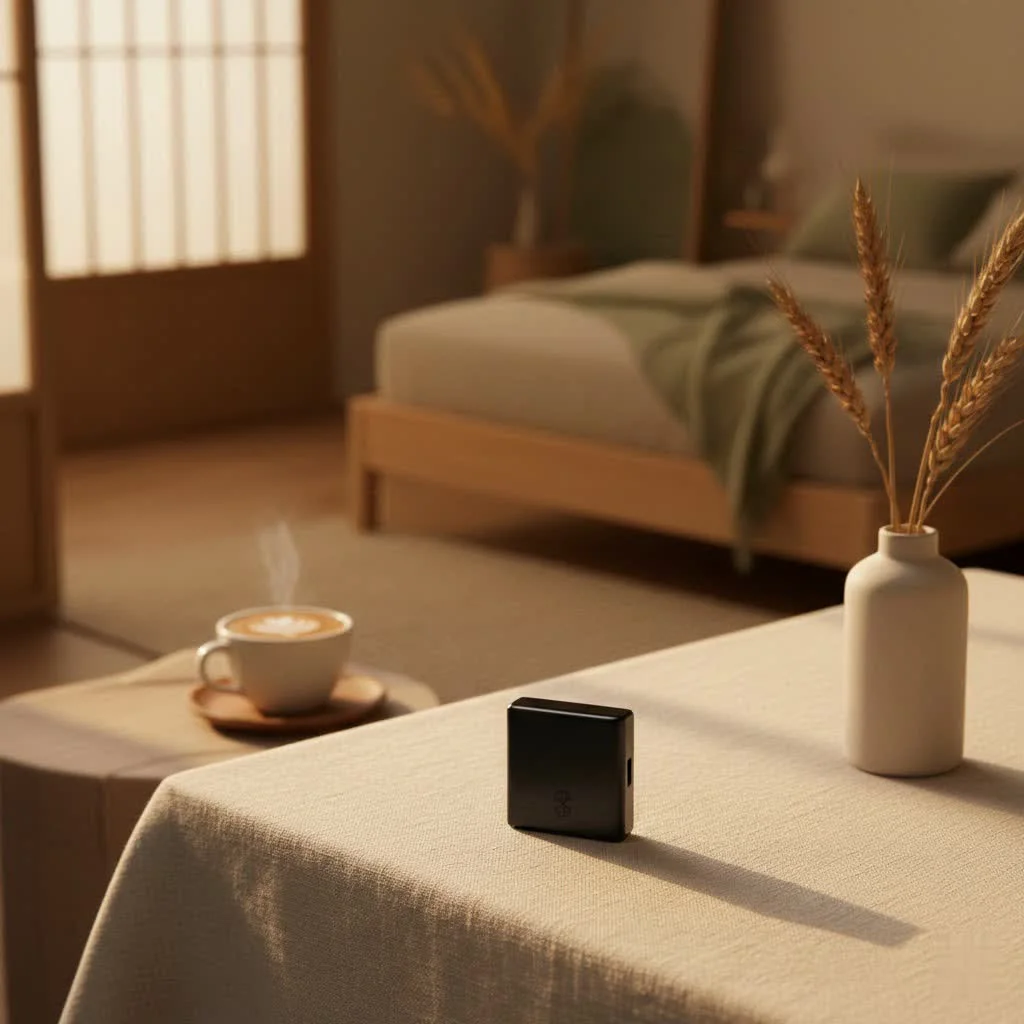
At Qisac.com, we’ve spent over a decade diving deep into the nuances of Bluetooth technology, and we understand that choosing the right dongle can seem like a daunting task. But fear not! By the end of this guide, you’ll be equipped with all the knowledge to confidently select, install, and troubleshoot the perfect Bluetooth dongle for your headphones, ensuring a seamless and high-quality audio experience.
What Exactly is a Bluetooth Dongle for Headphones?
Simply put, a Bluetooth dongle is a small hardware device that adds Bluetooth functionality to another device that doesn’t natively have it. Think of it as a translator, allowing your non-Bluetooth device to “speak” the same wireless language as your Bluetooth headphones.
When we talk about a bluetooth dongle for headphones, we’re primarily looking at two main types:
- USB Bluetooth Adapters: These are small USB sticks you plug into your computer (PC, Mac, Linux) or even some gaming consoles. They enable your machine to connect with Bluetooth headphones, keyboards, mice, and other peripherals. These are perfect for desktops that don’t have built-in Bluetooth or for upgrading older laptops to a newer Bluetooth standard.
- 3.5mm Audio Bluetooth Transmitters/Receivers: These clever devices plug into a standard 3.5mm headphone jack. In “transmitter” mode, they take audio from a non-Bluetooth source (like an airplane seat, gym treadmill, or TV) and beam it wirelessly to your Bluetooth headphones. In “receiver” mode, they can turn your wired headphones wireless or allow an old stereo system to receive audio from your phone via Bluetooth. Some even offer both transmit and receive functionalities.
Picking the Perfect Bluetooth Dongle for Your Headphones
Choosing the right bluetooth dongle for headphones isn’t just about grabbing the cheapest option. A few key factors will significantly impact your experience.
Bluetooth Version Matters
Just like software updates, Bluetooth technology evolves. Newer versions offer better performance.
- Bluetooth 4.0/4.2: Older, but still functional for basic connections. Limited range and speed compared to newer versions.
- Bluetooth 5.0: A significant leap, offering double the speed, four times the range, and eight times the broadcasting message capacity of Bluetooth 4.2. It’s also more energy-efficient, which is great for battery life.
- Bluetooth 5.1/5.3: These newer iterations bring further refinements, including improved connection speed, better location services, and enhanced power management, resulting in even more stable connections and potentially lower latency. While dongles are often backward compatible, matching the Bluetooth version of your headphones to your dongle (or going newer) is always a good idea for optimal performance.
Codecs for Crystal Clear Sound (and Low Latency)
|
Our Picks for the Best Bluetooth Dongle in 2026
As an Amazon Associate I earn from qualifying purchases.
|
||
| Num | Product | Action |
|---|---|---|
| 1 | Fardriver Bluetooth Dongle,Programmable Adapter,Bluetooth Dongle for Ebike Controller,Compatible with Fardriver Controller |

|
| 2 | Avantree DG45 USB Bluetooth Adapter Dongle for PC, Computer, Desktop & Laptop, Compatible with Windows 11/10/8.1/8 Only - Connects Bluetooth Headphones, Speakers, Keyboards, Mice & Printers (Not 2.4G) |
|
| 3 | Fardriver Programmable Bluetooth Dongle for Fardriver Controller, Bluetooth Adapter Compatible with Fardriver E Bike Programming Module |
|
| 4 | Fardriver Programmable Wireless Adapter Dongle Fardriver Controller Programming Module |
|
| 5 | UGREEN USB Bluetooth 5.3 Adapter for PC, Plug & Play for Windows 11/10/8.1, Bluetooth Receiver & Transmitter for Keyboard/Mouse/Headphone/Speakers/Printer |
|
| 6 | TP-Link USB Bluetooth Adapter for PC - Bluetooth 5.4 Dongle Receiver, Plug and Play, Nano Design, EDR & BLE, Supports Windows 11/10/8.1/7 for Desktop, Laptop, Keyboard, Mouse, etc (UB500) |
|
| 7 | ASUS USB-BT500 USB Adapter with Ultra Small Design, Bluetooth 5, Backward Compatible with Bluetooth®2.1/3.x/4.x, TAA Compliant (USB-BT500) |
|
| 8 | Ebike Programmable Bluetooth Dongle for Fardriver Controller,Bluetooth Adapter,Compatible with Soleil01 Electric Bicycles |
|
| 9 | TP-Link USB Bluetooth Adapter for PC, Bluetooth 5.3 Long Range Receiver, Plug and Play, Adjustable Antenna, Supports Windows 11/10/8.1/7 for Desktop, Laptop, Keyboard, Mouse, etc (UB500 Plus) |
|
| 10 | Fardriver Programmable Bluetooth Dongle Controller for E-Bike,Programmable Bluetooth Adapter Compatible with Fardriver E Bike |
|
Bluetooth audio isn’t just about connecting; it’s about how the audio data is compressed and transmitted. This is where codecs come in.
- SBC (Subband Codec): The universal, baseline codec. Every Bluetooth device supports it, but it offers basic audio quality and can have noticeable latency.
- AAC (Advanced Audio Coding): Common with Apple devices, AAC generally provides better audio quality than SBC and is often used by many streaming services.
- aptX (and its variants – HD, Low Latency, Adaptive): Developed by Qualcomm, aptX codecs are highly sought after, especially for discerning listeners and gamers.
- aptX HD: Offers “better than CD” quality audio.
- aptX Low Latency: Drastically reduces audio delay, making it ideal for watching videos or gaming where lip-sync issues can be frustrating.
- aptX Adaptive: A newer, dynamic codec that adjusts its bitrate based on the content and environment to provide the best balance of quality and low latency.
- LDAC: Developed by Sony, LDAC supports high-resolution audio, transmitting more data than other codecs for exceptional sound quality, though it requires both your dongle and headphones to support it.
If audio fidelity or gaming responsiveness is a priority, look for a dongle that supports the same advanced codecs as your headphones.
Compatibility Check
Before you buy, ensure the dongle works with your specific setup.
- Operating Systems: Most USB dongles are plug-and-play with Windows 10/11 and macOS. Linux might require specific drivers or configurations.
- Device Ports: Check if you need a USB-A or USB-C dongle. If your computer only has USB-C, a USB-A dongle might require an additional adapter. For audio adapters, confirm it has the standard 3.5mm jack.
- Gaming Consoles: Some dongles are specifically designed to work with consoles like the PlayStation 5 or Nintendo Switch, often providing specialized audio or chat features.
Range and Class
Bluetooth dongles are typically categorized into “classes” based on their maximum range:
- Class 2 (10 meters/33 feet): Most common and sufficient for typical desktop use.
- Class 1 (100 meters/330 feet): Offers significantly extended range, beneficial if your computer is far from your listening area or you move around a lot. Some Class 1 dongles even feature external antennas for better signal strength.
Transmitter vs. Receiver vs. 2-in-1
Consider your primary use case:
- Transmitter: Converts a non-Bluetooth audio source (like a TV) into a Bluetooth signal for your headphones.
- Receiver: Converts a Bluetooth signal (from your phone) into an audio output for wired headphones or an old stereo.
- 2-in-1: Offers both functionalities, providing maximum versatility for different scenarios.
Step-by-Step: Installing Your Bluetooth Dongle for Headphones
Getting your bluetooth dongle for headphones up and running is usually a straightforward process.
On Windows
- Plug it in: Insert the USB Bluetooth dongle into an available USB port on your PC.
- Driver Installation: For most modern dongles and Windows 10/11, drivers will install automatically. You might see a notification, or Windows Update may handle it in the background. If not, check the manufacturer’s website for specific drivers.
- Enable Bluetooth: Click on the Start menu, go to “Settings” (gear icon), then “Devices” (or “Bluetooth & devices” in Windows 11). Ensure the Bluetooth toggle is switched “On.”
- Pairing Mode on Headphones: Put your Bluetooth headphones into pairing mode. This usually involves holding down the power or a dedicated Bluetooth button until an LED light flashes rapidly (often blue and red). Consult your headphone’s manual for exact instructions.
- Add Device: In Windows Bluetooth settings, click “Add Bluetooth or other device,” then select “Bluetooth.” Your PC will scan for nearby devices.
- Select and Connect: Once your headphones appear in the list, select them and click “Connect” or “Pair.” You should hear a confirmation sound, and your headphones will be ready to use.
On macOS
- Plug it in: Insert the USB dongle into an available USB port.
- System Preferences: Go to Apple menu > System Preferences > Bluetooth.
- Enable Bluetooth: Ensure Bluetooth is turned “On.”
- Pairing Mode: Put your Bluetooth headphones into pairing mode.
- Connect: Your headphones should appear in the Bluetooth devices list. Click “Connect” next to their name.
For 3.5mm Audio Adapters (Transmitters)
- Plug into Audio Source: Connect the 3.5mm jack of the dongle into the audio output port of your device (e.g., airplane seat, TV headphone jack, gym equipment).
- Power On and Transmit Mode: Power on the dongle and ensure it’s in “transmit” mode (some have a switch or button to toggle between transmit/receive).
- Pair with Headphones: Put your Bluetooth headphones into pairing mode. The dongle will usually automatically scan and connect to them.
Troubleshooting Common Bluetooth Dongle Issues with Headphones
Even with the best hardware, occasional hiccups can occur. Here’s how to troubleshoot common problems:
My Headphones Aren’t Connecting or Aren’t Found
- Re-plug the Dongle: Sometimes a simple re-seat can resolve connection issues.
- Check Drivers: Ensure your dongle’s drivers are installed correctly and are up to date. You can check this in Windows Device Manager.
- Headphones in Pairing Mode: Double-check that your headphones are truly in pairing mode (flashing lights, audio prompt).
- Remove and Re-add Device: If your headphones were previously paired but won’t connect, try “removing” them from your device’s Bluetooth settings and then re-adding them from scratch.
- Interference: Move closer to the dongle or try turning off other nearby wireless devices (Wi-Fi routers, other Bluetooth devices) temporarily to rule out interference.
Poor Audio Quality or Lag (Latency)
- Check Codec Support: Both your dongle and headphones must support the same high-quality or low-latency codec (like aptX LL or LDAC) for you to benefit from it. If only one supports it, they’ll default to a lower common denominator like SBC.
- Distance and Obstacles: Bluetooth signal degrades with distance and physical obstructions (walls, large metal objects). Try moving closer to the dongle.
- Interference: As mentioned, other wireless signals can impact audio quality.
- Update Drivers/Firmware: Ensure both your dongle and headphone drivers/firmware are up to date.
- Power Management: On Windows, check your USB power settings to ensure the port supplying the dongle isn’t going into a power-saving mode.
Intermittent Disconnections
- Range Issues: You might be too far from the dongle or have too many obstacles in the way.
- Battery Level: Ensure your Bluetooth headphones are fully charged. Low battery can lead to unstable connections.
- Driver/Software Conflicts: Outdated drivers or conflicts with other software could be the culprit. Try updating drivers or temporarily disabling other Bluetooth-related applications.
Top Bluetooth Dongle Recommendations for Headphones
Based on our extensive experience and market analysis, here are some top recommendations for different needs:
For PC Gamers & Low Latency
If you’re into gaming, low latency is critical to prevent frustrating audio delays. Devices like the Creative BT-W5 and Avantree DG80/C81 are excellent choices. They often support aptX Adaptive or aptX Low Latency, providing near real-time audio synchronization. The Sennheiser BTD 600 is another strong contender, known for its superb audio fidelity and low latency, making it perfect for pairing with high-end wireless gaming headsets.
For General PC Use (Affordable & Reliable)
For everyday audio, like listening to music, watching videos, or online calls, reliability and ease of use are key. The ASUS USB-BT500 is a popular and budget-friendly option that brings Bluetooth 5.0 to your PC, offering good speed and range. Brands like TP-Link also offer solid, inexpensive USB Bluetooth adapters that are easy to set up and deliver consistent performance.
For Travel & In-Flight Entertainment
When you’re on the go and want to use your wireless headphones with systems that only have a headphone jack (like an airplane’s entertainment system or a gym treadmill), a 3.5mm audio transmitter is indispensable. The Twelve South AirFly Pro is a standout choice, celebrated for its compact design, multi-device connectivity, and long battery life. It’s a game-changer for travelers.
For Audiophiles (Wired to Wireless)
If you have a cherished pair of wired headphones but crave wireless convenience without sacrificing sound quality, certain high-fidelity Bluetooth audio adapters can transform them. Devices like the Qudelix 5K and FiiO BTR7 are renowned among audiophiles. These portable DAC/amp combos support advanced codecs like LDAC and aptX HD, delivering exceptional sound quality and power for even demanding headphones, effectively turning your wired setup into a high-performance wireless one.
The Qisac.com Perspective: Our Expert Take
“Choosing the right bluetooth dongle for headphones isn’t about having the most expensive gadget, but about finding the perfect match for your specific needs and existing equipment,” advises Dr. Anya Sharma, lead wireless technology analyst at Qisac.com. “Prioritize the Bluetooth version for range and stability, and pay close attention to audio codecs if sound quality or low latency for gaming is important to you. A good dongle should feel like an invisible bridge, seamlessly connecting you to your audio world.”
FAQs About Bluetooth Dongles for Headphones
Q1: Do I really need a Bluetooth dongle if my PC has Wi-Fi?
No, Wi-Fi and Bluetooth are different wireless technologies. While some newer motherboards or laptops integrate both, having Wi-Fi doesn’t automatically mean your PC has Bluetooth. If your PC doesn’t show Bluetooth settings, you’ll need a dongle to add that functionality.
Q2: Can I use any Bluetooth headphones with any dongle?
Generally, yes. Bluetooth is designed for backward compatibility. However, to take advantage of advanced features like specific low-latency codecs (e.g., aptX Low Latency) or high-resolution audio (e.g., LDAC), both your headphones and the dongle must support that particular codec. If they don’t, they’ll connect using a common, less advanced codec like SBC.
Q3: What’s the difference between Bluetooth 4.0, 5.0, and 5.3 dongles?
Newer Bluetooth versions offer improvements in speed, range, and power efficiency. Bluetooth 5.0, for example, is faster and has a much greater range than 4.0. Bluetooth 5.3 brings further refinements for stability and interference management. While older versions still work, newer dongles provide a more robust and future-proof connection.
Q4: Will a Bluetooth dongle improve my headphone’s sound quality?
A dongle itself doesn’t inherently improve the sound quality of your headphones beyond what they are capable of. However, choosing a dongle that supports higher-fidelity audio codecs (like aptX HD or LDAC) can ensure that the audio signal transmitted wirelessly is of higher quality, allowing your headphones to perform at their best. If your current setup uses a basic codec, upgrading to a dongle with advanced codec support can indeed lead to a noticeable improvement.
Q5: Can I use a Bluetooth dongle on a gaming console?
Yes, some Bluetooth dongles are specifically designed and advertised for compatibility with gaming consoles like the PlayStation or Nintendo Switch. These dongles often feature low-latency codecs to minimize audio delay, crucial for gaming. Always check the product specifications for console compatibility.
Q6: How far can my headphones be from the dongle?
The range depends on the Bluetooth class of your dongle. Class 2 dongles typically offer a range of about 10 meters (33 feet), which is standard for most personal computing environments. Class 1 dongles, often featuring an external antenna, can extend this range significantly, up to 100 meters (330 feet) in open spaces. Walls and other obstructions will reduce the effective range.
Conclusion
Embracing wireless audio with your favorite headphones is more accessible than ever, thanks to the versatility of the bluetooth dongle for headphones. Whether you’re upgrading an aging PC, seeking pristine low-latency audio for gaming, or simply want to ditch the cables on your next flight, there’s a dongle out there to meet your needs. By understanding the key factors like Bluetooth versions, audio codecs, and compatibility, you can make an informed decision and unlock a seamless, high-quality wireless listening experience.
Don’t let wires hold you back any longer. Explore the possibilities, choose wisely, and enjoy the freedom that a well-chosen Bluetooth dongle brings to your audio world. For more in-depth reviews and expert insights into wireless technology, keep Qisac.com as your go-to resource!
Pet products vetted on real animals
Practical specs, not advice. Unsubscribe anytime.