In the world of off-grid living, marine setups, RV adventures, and advanced solar installations, managing your power system efficiently is paramount. That’s where the Victron Energy Bluetooth Dongle steps in, transforming complex power data into easily digestible insights right on your smartphone or tablet. If you own Victron Energy products that don’t have built-in Bluetooth, this little device is your essential bridge to modern, wireless monitoring and control. It brings the power of the VictronConnect app to your fingertips, making system management intuitive and accessible.
What is the Victron Energy Bluetooth Dongle?
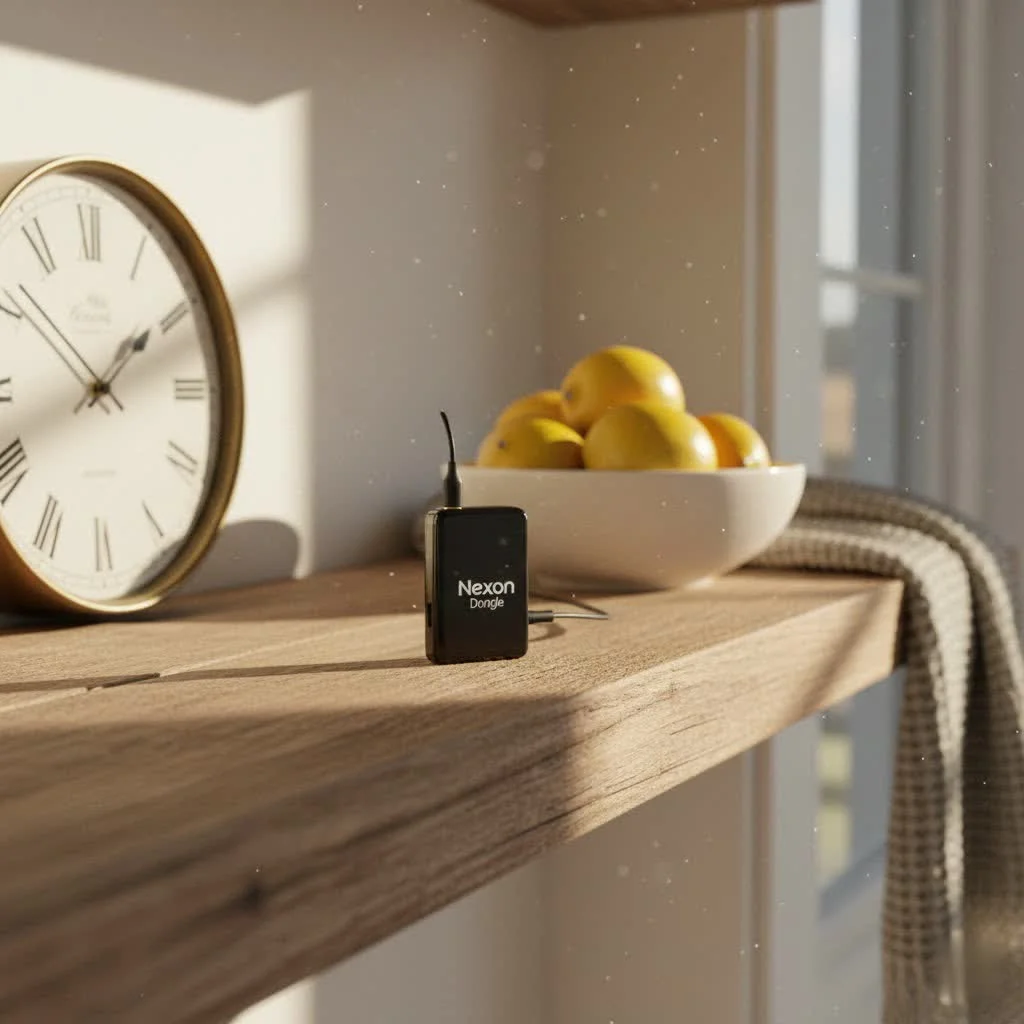
At its core, the Victron Energy Bluetooth Dongle is a compact adapter designed to add Bluetooth connectivity to Victron Energy products that feature a VE.Direct communication port but lack integrated Bluetooth capabilities. Think of it as an interpreter, translating the detailed data from your battery monitors, solar charge controllers, and inverters into a language your mobile device can understand. By plugging this dongle into your Victron device, you unlock wireless access for monitoring, configuring settings, and even performing firmware updates via the free VictronConnect app. This means no more clunky interfaces or hard-to-reach displays; your entire power system becomes manageable from the palm of your hand.
Key Features That Make a Difference
The Victron Energy Bluetooth Dongle isn’t just a simple connection tool; it’s packed with features designed to enhance your power system management.
Wireless Data Viewing for Unparalleled Convenience
One of the most significant advantages is the ability to wirelessly view critical system data. Whether you’re tracking battery status, monitoring solar panel power output, or checking inverter performance, the VictronConnect app provides real-time and historical values. This means you can keep an eye on your energy consumption and production without needing to be physically next to your equipment.
VE.Smart Networking: A Connected Ecosystem
For setups with multiple Victron products, the VE.Smart Networking feature is a game-changer. This wireless communication network allows compatible Victron devices to share information, optimizing overall system performance. For instance, a battery monitor can tell a solar charger the battery’s state of charge, leading to more intelligent and efficient charging cycles.
Instant Readout for At-a-Glance Diagnostics
Imagine knowing the health of your system before you even connect to it. With Instant Readout, the VictronConnect app displays key data directly on its device list page without requiring a full connection to the product. This includes visual notifications for warnings, alarms, and errors, allowing for quick, at-a-glance diagnostics that can save you time and prevent potential issues. This feature requires the dongle to have firmware version 2.41 or later.
Cross-Platform Compatibility
|
Our Picks for the Best Bluetooth Dongle in 2026
As an Amazon Associate I earn from qualifying purchases.
|
||
| Num | Product | Action |
|---|---|---|
| 1 | TP-Link USB Bluetooth Adapter for PC - Bluetooth 5.4 Dongle Receiver, Plug and Play, Nano Design, EDR & BLE, Supports Windows 11/10/8.1/7 for Desktop, Laptop, Keyboard, Mouse, etc (UB500) |

|
| 2 | Fardriver Bluetooth Dongle,Programmable Adapter,Bluetooth Dongle for Ebike Controller,Compatible with Fardriver Controller |
|
| 3 | TP-Link USB Bluetooth Adapter for PC, Bluetooth 5.3 Long Range Receiver, Plug and Play, Adjustable Antenna, Supports Windows 11/10/8.1/7 for Desktop, Laptop, Keyboard, Mouse, etc (UB500 Plus) |
|
| 4 | ASUS USB-BT500 USB Adapter with Ultra Small Design, Bluetooth 5, Backward Compatible with Bluetooth®2.1/3.x/4.x, TAA Compliant (USB-BT500) |
|
| 5 | Avantree DG45 USB Bluetooth Adapter Dongle for PC, Computer, Desktop & Laptop, Compatible with Windows 11/10/8.1/8 Only - Connects Bluetooth Headphones, Speakers, Keyboards, Mice & Printers (Not 2.4G) |
|
| 6 | Ebike Programmable Bluetooth Dongle for Fardriver Controller,Bluetooth Adapter,Compatible with Soleil01 Electric Bicycles |
|
| 7 | UGREEN USB Bluetooth 5.3 Adapter for PC, Plug & Play for Windows 11/10/8.1, Bluetooth Receiver & Transmitter for Keyboard/Mouse/Headphone/Speakers/Printer |
|
| 8 | Fardriver Programmable Wireless Adapter Dongle Fardriver Controller Programming Module |
|
| 9 | Fardriver Programmable Bluetooth Dongle Controller for E-Bike,Programmable Bluetooth Adapter Compatible with Fardriver E Bike |
|
| 10 | Fardriver Programmable Bluetooth Dongle for Fardriver Controller, Bluetooth Adapter Compatible with Fardriver E Bike Programming Module |
|
The Victron Energy Bluetooth Dongle works seamlessly across various operating systems, supporting iOS, Android, and macOS devices. This broad compatibility ensures that most users can integrate the dongle into their existing tech ecosystem without issues.
Robust Security and Easy Updates
Security is paramount, and the dongle features a clear PIN code button, allowing you to easily reset your device’s Bluetooth PIN to the default “000000” if you ever forget it or need to grant temporary access. Beyond security, the dongle facilitates effortless firmware updates for compatible Victron products, ensuring your equipment always runs with the latest improvements and bug fixes. Plus, it operates with ultra-low power consumption, making it an energy-efficient addition to your system.
Is It Compatible with Your Victron Setup?
Understanding compatibility is crucial before you invest in a Victron Energy Bluetooth Dongle. The good news is that it’s designed to work with a broad range of Victron products, provided they have a VE.Direct port.
You’ll typically find the Victron Energy Bluetooth Dongle to be compatible with:
- BMV-70x series battery monitors: Including models like the BMV-700, BMV-702, and BMV-712.
- Phoenix Inverters: Specifically those equipped with a VE.Direct port, generally models under 1200VA.
- BlueSolar MPPT Solar Charge Controllers: This covers many non-smart MPPT controllers that rely on the VE.Direct interface.
However, it’s vital to note some exceptions. The dongle is not compatible with Victron’s GX devices (like the Cerbo GX or Color Control GX), as these devices often have built-in connectivity or are designed for a different level of system integration. Additionally, while the VictronConnect app supports macOS, the dongle itself isn’t designed for direct connection to a Windows PC via Bluetooth. For precise compatibility, always consult the “Compatible Victron Products” section within the VictronConnect manual.
“In my experience, many users overlook the VE.Direct port’s potential until they discover the convenience of wireless monitoring,” says Johnathan Price, a seasoned off-grid system designer. “The Victron Energy Bluetooth Dongle breathes new life into older or non-Bluetooth devices, bridging the gap between hardware and the powerful VictronConnect app. It’s often the most cost-effective way to get comprehensive system insights without a major upgrade.”
Step-by-Step Installation: Getting Your Dongle Up and Running
Installing your Victron Energy Bluetooth Dongle is straightforward, even if you’re not a seasoned tech enthusiast. Here’s a simple guide to get you connected:
Preparation
- Power Off: Before connecting anything, ensure the Victron Energy product you intend to monitor (e.g., your BMV battery monitor or MPPT solar charger) is completely powered off. Safety first!
- Download the App: Download the free VictronConnect app onto your iOS, Android, or macOS device from your respective app store.
Physical Connection
- Locate the Port: Find the VE.Direct port on your Victron Energy product. This is a small, rectangular port designed for Victron’s proprietary communication cables.
- Plug In: Connect the VE.Direct plug of the Bluetooth Smart Dongle directly into the VE.Direct port of your device.
- Power On: Once the dongle is securely connected, power on your Victron Energy product. You should see the blue LED on the dongle begin to blink slowly, indicating it’s ready for a Bluetooth connection.
App Pairing & Initial Setup
- Enable Bluetooth: Make sure Bluetooth is enabled on your smartphone or tablet.
- Open VictronConnect: Launch the VictronConnect app. It will automatically scan for nearby Victron products, including the one connected to your dongle.
- Connect: Your device (e.g., “BlueSolar Charger MPPT 100/50”) will appear in the “Discovery” screen. Tap on its name to connect.
- Enter PIN: If prompted, enter the default PIN code, which is
000000(six zeros). For enhanced security, you can change this PIN later within the app’s settings. - Firmware Update: The VictronConnect app may automatically initiate a firmware update for the dongle upon the first connection. This process is crucial for optimal performance and typically runs smoothly.
Installation Checklist:
- Victron device powered off?
- VictronConnect app downloaded?
- Dongle securely plugged into VE.Direct port?
- Victron device powered on?
- Dongle’s blue LED blinking?
- Bluetooth enabled on mobile device?
- VictronConnect app open and scanning?
- Connected using default PIN (000000)?
- Firmware updated (if prompted)?
Troubleshooting Common Victron Bluetooth Dongle Issues
Even with the most reliable tech, sometimes things don’t go as planned. Here are common issues you might encounter with your Victron Energy Bluetooth Dongle and how to troubleshoot them.
My Dongle Isn’t Showing Up in the App
If your Victron Energy Bluetooth Dongle isn’t appearing in the VictronConnect app’s “Discovery” list, consider these steps:
- Check Compatibility: First, ensure your Victron product is listed as compatible with the dongle. The dongle needs a VE.Direct port.
- Verify Power: The dongle draws power from the VE.Direct port. Make sure the Victron product it’s connected to is powered on and functioning. Check if the dongle’s LEDs are blinking. If not, there might be a power issue or a problem with the dongle itself.
- Proximity: Bluetooth range is typically around 20 meters in open space. Ensure your phone or tablet is close enough to the dongle.
- Single Connection Rule: Only one phone or tablet can connect to a dongle at a time. Confirm no other devices are currently paired or attempting to connect.
- Refresh the App: Pull down the “Discovery” screen within the VictronConnect app to refresh the device list.
- Hard Reset: Disconnect the dongle from your Victron product, wait a few seconds, then reconnect it.
I Can See It, But I Can’t Connect
If the dongle appears in your app but won’t establish a connection:
- Re-pairing Process: Often, outdated Bluetooth pairing information is the culprit.
- Go to your phone’s or tablet’s Bluetooth settings (not the VictronConnect app).
- Find any “VE.Direct LE” or similar Victron device in your paired devices list.
- Tap the (i) icon (or equivalent) next to it and select “Forget This Device” or “Unpair.”
- Open the VictronConnect app again and pull down the Discovery screen to rediscover products.
- Set the dongle into pairing mode by briefly pressing the small button on the dongle itself.
- Tap on your Victron product in the app’s Discovery screen and confirm the pairing.
- Incorrect PIN Code: The default PIN is
000000. If you’ve changed it and forgotten, you can reset it by pressing and holding the “Clear PIN” button on the dongle until the blue Bluetooth light briefly flashes off and on. This reverts the PIN to the default.
Firmware Update Failed
Firmware updates are vital but can occasionally be tricky. If an update fails:
- Restart Everything: Force close the VictronConnect app, restart your phone/tablet, and then try the update again.
- Check PIN: Sometimes a failed update can revert the product’s custom name or PIN. Follow the re-pairing and PIN reset steps above if needed.
- Patience is Key: Firmware updates can take time, and sometimes multiple steps are involved. Be patient and ensure your device remains close to the dongle throughout the process.
What Do the LEDs Mean?
The two LEDs on your Victron Energy Bluetooth Dongle provide valuable status information:
- Blue LED: This indicates the Bluetooth status.
- Slow blinking: The dongle is powered and ready to connect.
- Solid on: The dongle is successfully connected to a device via Bluetooth.
- Red LED: This is the error indicator.
- Solid on/Alternating with Blue: Often indicates an issue with VE.Direct communication or the dongle being in firmware update mode. Consult the specific Victron product manual for detailed error code interpretations. If alternating fast with blue, it means it’s in firmware update mode.
Maximizing Your Victron Energy System with Bluetooth
Integrating the Victron Energy Bluetooth Dongle into your setup isn’t just about convenience; it’s about empowering you to get the most out of your power system. Wireless monitoring means you can proactively identify potential issues, optimize performance, and ensure the longevity of your equipment without being physically tethered. Regular checks via the VictronConnect app allow you to observe trends, understand your energy usage patterns, and make informed decisions about your power consumption. Always keep your VictronConnect app and dongle firmware updated to benefit from the latest features and security enhancements. This proactive approach helps you maintain a reliable and efficient power system, giving you peace of mind whether you’re on the road, at sea, or managing a stationary off-grid setup.
FAQ
What is the default PIN for a Victron Bluetooth Dongle?
The default PIN code for a Victron Energy Bluetooth Dongle is 000000 (six zeros). You can change this PIN through the VictronConnect app for security.
Can I use the Victron Bluetooth Dongle with a Windows PC?
No, the Victron Energy Bluetooth Dongle is primarily designed for use with iOS, Android, and macOS devices via the VictronConnect app. It does not support direct Bluetooth connection to a Windows PC.
Which Victron products are compatible with the VE.Direct Bluetooth Smart dongle?
The dongle is compatible with most Victron Energy products that have a VE.Direct port, such as BMV-70x series battery monitors, Phoenix Inverters with a VE.Direct port (typically under 1200VA), and BlueSolar MPPT Solar Charge Controllers. It is not compatible with GX devices.
How far can I be from the dongle and still connect?
In open space, you should be able to connect to the dongle from a distance of up to approximately 20 meters. However, obstacles like walls and metal can significantly reduce this range.
What is VE.Smart Networking?
VE.Smart Networking is a wireless communication network that allows multiple Victron products to share information with each other. This enables features like synchronized charging and optimized performance across your entire Victron Energy system.
How do I reset a lost PIN code on my Victron Bluetooth Dongle?
To reset a lost PIN code, locate the small “Clear PIN” button on the dongle itself. Press and hold this button until the solid blue Bluetooth light briefly flashes off and on. This action will reset the PIN code to the default 000000.
Conclusion
The Victron Energy Bluetooth Dongle is a small but mighty accessory that brings unparalleled convenience and control to your Victron power system. By enabling seamless wireless communication with the intuitive VictronConnect app, it empowers you to monitor, configure, and troubleshoot your devices from anywhere within range. Whether you’re an experienced system integrator or a DIY enthusiast, this dongle transforms how you interact with your Victron products, offering real-time insights and proactive management tools. Embrace the future of smart energy management and make the Victron Energy Bluetooth Dongle an indispensable part of your setup, ensuring your power system runs smoothly and efficiently for years to come.
Pet products vetted on real animals
Practical specs, not advice. Unsubscribe anytime.