In today’s interconnected world, a desktop computer without Bluetooth feels a bit like a car without wheels – functional for its primary purpose, but severely limited in its ability to interact with the world around it. Whether you’re looking to connect wireless headphones, a sleek keyboard and mouse, or even game controllers, a reliable Bluetooth dongle for desktop is your ticket to seamless wireless freedom. Many older or custom-built PCs simply don’t come with integrated Bluetooth, leaving users in a tangle of wires. That’s where a small, unassuming USB dongle steps in, transforming your desktop into a hub of wireless possibilities.
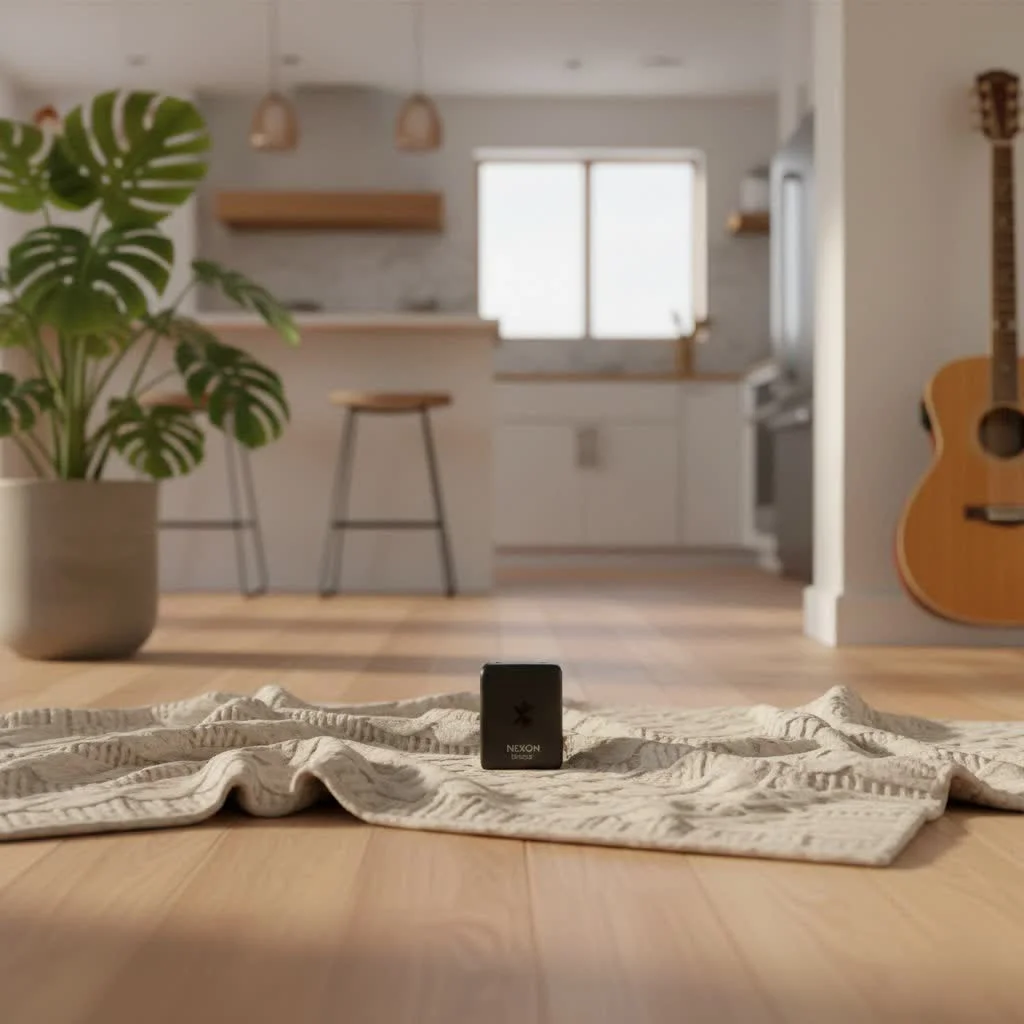
What Exactly is a Bluetooth Dongle for Desktop?
At its core, a Bluetooth dongle for desktop is a small adapter, typically a USB device, that adds Bluetooth wireless communication capabilities to your computer. Think of it as a translator that allows your desktop to “speak” the Bluetooth language, enabling it to communicate with a vast array of Bluetooth-enabled devices. For more bluetooth dongles guides on this site.
What does a Bluetooth dongle do for a PC?
A Bluetooth dongle provides the necessary hardware for your PC to send and receive Bluetooth signals. This allows your desktop to connect wirelessly to devices such as:
- Wireless peripherals: Keyboards, mice, trackpads.
- Audio devices: Headphones, earbuds, speakers.
- Gaming controllers: Xbox, PlayStation, Switch Pro controllers.
- Smartphones and tablets: For file transfer and tethering.
- Other Bluetooth-enabled accessories: Printers, smart home devices, health monitors.
Why would a desktop need a Bluetooth dongle?
Many desktop PCs, especially older models or those built for specific purposes like heavy gaming rigs, often lack built-in Bluetooth modules. Even newer budget-friendly desktops might omit this feature to keep costs down. Furthermore, if your desktop has an older version of Bluetooth (like 2.0 or 3.0), you might consider an upgrade to a newer Bluetooth dongle for desktop to take advantage of improved speed, range, and energy efficiency offered by modern Bluetooth standards.
Decoding Bluetooth Standards: Which One is Right for You?
Understanding the different Bluetooth versions is crucial when selecting a Bluetooth dongle for desktop. Each iteration brings improvements in speed, range, and power consumption.
Bluetooth 4.0 vs. Bluetooth 5.0: What’s the difference?
The jump from Bluetooth 4.0 to 5.0 was significant. Bluetooth 4.0 (and its sub-versions like 4.1 and 4.2) introduced Bluetooth Low Energy (BLE), which was a game-changer for battery life in small devices. However, Bluetooth 5.0, officially released in 2016, brought substantial upgrades:
- Speed: Bluetooth 5.0 offers twice the speed of Bluetooth 4.2, allowing for faster data transfer.
- Range: It boasts four times the range, meaning you can connect devices further away from your desktop without losing connection quality.
- Bandwidth: With eight times the broadcast message capacity, Bluetooth 5.0 can handle more data for beacon technology and other applications.
- Energy Efficiency: Despite the performance boosts, it maintains excellent power efficiency, benefiting connected devices.
According to tech expert Dr. Anya Sharma, “Upgrading to a Bluetooth 5.0 dongle is one of the most cost-effective ways to modernize an older desktop’s wireless capabilities, providing noticeable improvements for everything from audio streaming to gaming.”
Exploring Bluetooth 5.1 and 5.3: The Latest Advancements
|
Our Picks for the Best Bluetooth Dongle in 2026
As an Amazon Associate I earn from qualifying purchases.
|
||
| Num | Product | Action |
|---|---|---|
| 1 | Avantree DG45 USB Bluetooth Adapter Dongle for PC, Computer, Desktop & Laptop, Compatible with Windows 11/10/8.1/8 Only - Connects Bluetooth Headphones, Speakers, Keyboards, Mice & Printers (Not 2.4G) |

|
| 2 | UGREEN USB Bluetooth 5.3 Adapter for PC, Plug & Play for Windows 11/10/8.1, Bluetooth Receiver & Transmitter for Keyboard/Mouse/Headphone/Speakers/Printer |
|
| 3 | Fardriver Programmable Bluetooth Dongle for Fardriver Controller, Bluetooth Adapter Compatible with Fardriver E Bike Programming Module |
|
| 4 | ASUS USB-BT500 USB Adapter with Ultra Small Design, Bluetooth 5, Backward Compatible with Bluetooth®2.1/3.x/4.x, TAA Compliant (USB-BT500) |
|
| 5 | Fardriver Programmable Bluetooth Dongle Controller for E-Bike,Programmable Bluetooth Adapter Compatible with Fardriver E Bike |
|
| 6 | Fardriver Programmable Wireless Adapter Dongle Fardriver Controller Programming Module |
|
| 7 | TP-Link USB Bluetooth Adapter for PC, Bluetooth 5.3 Long Range Receiver, Plug and Play, Adjustable Antenna, Supports Windows 11/10/8.1/7 for Desktop, Laptop, Keyboard, Mouse, etc (UB500 Plus) |
|
| 8 | Ebike Programmable Bluetooth Dongle for Fardriver Controller,Bluetooth Adapter,Compatible with Soleil01 Electric Bicycles |
|
| 9 | TP-Link USB Bluetooth Adapter for PC - Bluetooth 5.4 Dongle Receiver, Plug and Play, Nano Design, EDR & BLE, Supports Windows 11/10/8.1/7 for Desktop, Laptop, Keyboard, Mouse, etc (UB500) |
|
| 10 | Fardriver Bluetooth Dongle,Programmable Adapter,Bluetooth Dongle for Ebike Controller,Compatible with Fardriver Controller |
|
Beyond Bluetooth 5.0, subsequent versions continue to refine the technology:
- Bluetooth 5.1: Introduced “Direction Finding,” allowing devices to pinpoint the location of other Bluetooth devices with greater accuracy. This is particularly useful for indoor positioning systems and asset tracking, though less critical for a typical bluetooth dongle for desktop user.
- Bluetooth 5.2 (LE Audio): Focused heavily on improvements for audio devices, introducing features like Isochronous Channels for better synchronized audio streams, and LC3 codec for higher quality audio at lower bit rates.
- Bluetooth 5.3: Offers further enhancements in connection reliability, power efficiency through improved periodic advertising, and better security features. While these may seem minor for everyday use, they contribute to a more robust and energy-efficient wireless ecosystem.
For most desktop users, a Bluetooth 5.0 or 5.3 dongle will offer the best balance of features, performance, and future-proofing.
How to Choose the Perfect Bluetooth Dongle for Your Desktop
Selecting the right Bluetooth dongle for desktop can seem daunting with so many options. Here’s what to look for:
Compatibility Check: Ensuring Your Dongle Works with Your OS
The first and most important step is to ensure the dongle is compatible with your desktop’s operating system.
- Windows: Most Bluetooth dongles are designed primarily for Windows (11, 10, 8.1, 7). Always check the product specifications for exact OS support. Some dongles might require specific drivers for older Windows versions.
- macOS: While most Macs have built-in Bluetooth, if you need to upgrade or add it, ensure the dongle explicitly states macOS compatibility, as driver support can be more limited.
- Linux: Compatibility with Linux can vary. Many dongles work out-of-the-box with common Linux distributions, but some might require manual driver installation or specific kernel modules. It’s wise to research user experiences with specific dongle models on Linux forums before purchasing.
Consider Your Needs: Speed, Range, and Energy Efficiency
- Speed: For general use like connecting a mouse and keyboard, Bluetooth 4.0 is usually sufficient. However, if you plan to stream high-quality audio, transfer large files, or use it for gaming with low latency, a Bluetooth 5.0 or higher dongle is highly recommended for its increased data throughput.
- Range: Standard Bluetooth range is typically around 10 meters (33 feet). If your desktop is in one room and you want to use devices in an adjacent room, or if you have a large open office, look for dongles that specify “extended range” or are Bluetooth 5.0+, as these can offer up to 40 meters (130 feet) or more in optimal conditions.
- Energy Efficiency: While less critical for a desktop dongle (since it’s typically always powered), a dongle with Bluetooth Low Energy (BLE) capabilities (available in 4.0 and higher) benefits the connected devices by reducing their battery drain.
Driver Support and Plug-and-Play Convenience
Ideally, you want a “plug-and-play” Bluetooth dongle for desktop that works instantly when plugged into a USB port, with drivers automatically installed by your OS. Many modern dongles achieve this on Windows 10 and 11. However, some dongles, especially those with advanced features or support for older OS versions, might require you to manually install drivers from a disc or the manufacturer’s website. Always check the product description for driver requirements.
Seamless Setup: Installing Your Bluetooth Dongle for Desktop
Installing a Bluetooth dongle for desktop is generally a straightforward process, often taking just a few minutes.
Step-by-Step Installation on Windows
Here’s a typical installation guide for Windows users:
- Plug in the Dongle: Insert the Bluetooth dongle into an available USB port on your desktop. For best results, use a USB 2.0 or 3.0 port directly on the motherboard (rear ports on a tower PC).
- Driver Installation:
- Automatic: Windows 10/11 will often detect the dongle and automatically install the necessary drivers. You’ll usually see a notification indicating “Device setup complete.”
- Manual (if needed): If Windows doesn’t install drivers automatically, or if you’re on an older OS, you may need to:
- Insert the included driver CD (if any).
- Download drivers from the manufacturer’s website.
- Go to Device Manager (search “Device Manager” in Windows Search), look for “Bluetooth” or “Other devices,” right-click the uninstalled device, and select “Update driver.”
- Enable Bluetooth: Once drivers are installed, go to Windows Settings > Devices > Bluetooth & other devices (or simply search “Bluetooth” in Windows Search). Ensure the Bluetooth toggle is switched “On.”
- Pair Your Devices:
- Click “Add Bluetooth or other device.”
- Select “Bluetooth.”
- Put your Bluetooth device (headphones, mouse, etc.) into pairing mode (this usually involves holding a button until an LED flashes).
- Select your device from the list that appears on your PC.
- Follow any on-screen prompts to complete pairing.
A Note on macOS and Linux Desktops
- macOS: If you’re using a Bluetooth dongle with a Mac (perhaps to get a newer Bluetooth standard), the process is similar. Plug in the dongle, and it should typically be recognized. You might need to disable the built-in Bluetooth in System Settings if conflicts arise.
- Linux: On Linux, after plugging in the dongle, you’ll generally need to use your distribution’s Bluetooth manager (like Blueman or GNOME Bluetooth) to enable and pair devices. Driver installation might be more command-line intensive for some less common dongles, but many major brands work out-of-the-box.
Troubleshooting Common Bluetooth Dongle Issues
Even with the best Bluetooth dongle for desktop, you might occasionally encounter hiccups. Here’s how to tackle them:
My Dongle Isn’t Detected: First Steps to Take
If your desktop isn’t recognizing the dongle:
- Try a Different USB Port: Sometimes, a port might be faulty or incompatible.
- Restart Your PC: A simple reboot can resolve many minor driver or detection issues.
- Check Device Manager (Windows): Look for “Bluetooth” adapters. If you see an unknown device or a yellow exclamation mark, it indicates a driver problem. Try to update or reinstall the drivers.
- Disable and Re-enable Bluetooth: In Windows settings, toggle the Bluetooth switch off, wait a few seconds, then turn it back on.
Pairing Problems: Getting Your Devices Connected
If your device isn’t pairing:
- Ensure Device is in Pairing Mode: This is the most common issue. Double-check your device’s manual.
- Bring Devices Closer: Reduce distance and remove any obstructions between the dongle and your device.
- Remove Old Pairings: If the device was previously paired with another computer or phone, it might be trying to connect there. Delete the old pairing and try again.
- Check for Interference: Other wireless devices (Wi-Fi routers, cordless phones) can sometimes interfere.
- Update Dongle Drivers: Outdated drivers can cause pairing failures.
Poor Connection or Audio Quality: How to Improve Performance
Experiencing choppy audio or dropped connections?
- Proximity is Key: Stay within the recommended range. Bluetooth works best without walls or large objects between the dongle and the device.
- USB Port Placement: If your desktop is under a desk, try using a USB extension cable to bring the dongle out from behind the PC, closer to an open area. This can significantly improve signal strength.
- Check for Driver Updates: Ensure your dongle’s drivers are up to date.
- Disable Wi-Fi (Temporarily): In rare cases, Wi-Fi (especially on the 2.4 GHz band, which Bluetooth also uses) can cause interference. Temporarily disabling Wi-Fi can help diagnose if this is the issue.
- Re-pair the Device: Sometimes, simply disconnecting and re-pairing the problematic device can resolve performance issues.
Top Picks: Best Bluetooth Dongles for Desktop PCs
While specific model recommendations can change frequently with new releases, certain brands consistently offer reliable Bluetooth dongle for desktop solutions.
Recommended Brands and Models for Various Needs
- TP-Link: Known for reliable and affordable networking hardware, TP-Link offers excellent Bluetooth dongles that are often plug-and-play for Windows. Their UB500 (Bluetooth 5.0) is a popular choice for its balance of performance and value.
- ASUS: A major player in PC components, ASUS also provides robust Bluetooth adapters. Their USB-BT500 (Bluetooth 5.0) offers solid performance with good driver support.
- UGREEN: A growing brand in accessories, UGREEN provides several well-regarded Bluetooth dongles, often praised for their compact size and broad compatibility.
- ZEXMTE / Avantree: These brands are often recognized for their focus on specific functionalities like extended range or audio quality, catering to users with more niche requirements.
When choosing, prioritize dongles that specifically state Bluetooth 5.0 or higher for optimal performance and future compatibility, especially if you plan to connect multiple devices or use high-bandwidth applications like gaming.
Frequently Asked Questions
Can I use a Bluetooth dongle for gaming?
Absolutely! A high-quality Bluetooth dongle for desktop, especially one supporting Bluetooth 5.0 or later, can provide a stable connection for wireless game controllers, reducing input lag. Ensure your dongle has good drivers and consider keeping it close to your controller for optimal performance.
Do Bluetooth dongles consume a lot of power?
No, Bluetooth dongles are very low power devices. Modern dongles, especially those with Bluetooth Low Energy (BLE) capabilities (Bluetooth 4.0 and higher), are designed to be extremely power-efficient, drawing minimal power from your desktop’s USB port.
How far can a Bluetooth dongle reach?
Standard Bluetooth range is typically about 10 meters (33 feet). However, Bluetooth 5.0 and newer dongles, especially those advertised with “extended range,” can reach up to 40 meters (130 feet) or more in open environments, though factors like walls and interference can reduce this significantly.
Are all Bluetooth dongles compatible with all devices?
Most Bluetooth dongles are universally compatible with Bluetooth-enabled devices. The primary compatibility concern is typically with your operating system (Windows, macOS, Linux) and ensuring the necessary drivers are installed. Once the dongle is set up on your PC, it should connect with any standard Bluetooth device.
Can I use multiple Bluetooth dongles on one desktop?
While technically possible, it’s generally not recommended and can lead to conflicts or degraded performance. A single Bluetooth dongle for desktop is designed to handle multiple simultaneous connections (up to 7 or 8 active devices, depending on the dongle and Bluetooth standard). If you need more robust wireless options, consider a Wi-Fi/Bluetooth combo card (like a PCIe card) rather than multiple USB dongles.
Embrace the Wireless World
Adding a Bluetooth dongle for desktop is a simple yet powerful upgrade that unlocks a world of wireless convenience. No more wrestling with cables for your mouse, keyboard, or headphones. By understanding the different Bluetooth standards, knowing what to look for, and following basic installation and troubleshooting steps, you can confidently integrate your desktop into your wireless ecosystem. So go ahead, make the switch, and enjoy the freedom and flexibility that a high-quality Bluetooth dongle brings to your computing experience. Your desktop (and your desk) will thank you for it!
Pet products vetted on real animals
Practical specs, not advice. Unsubscribe anytime.