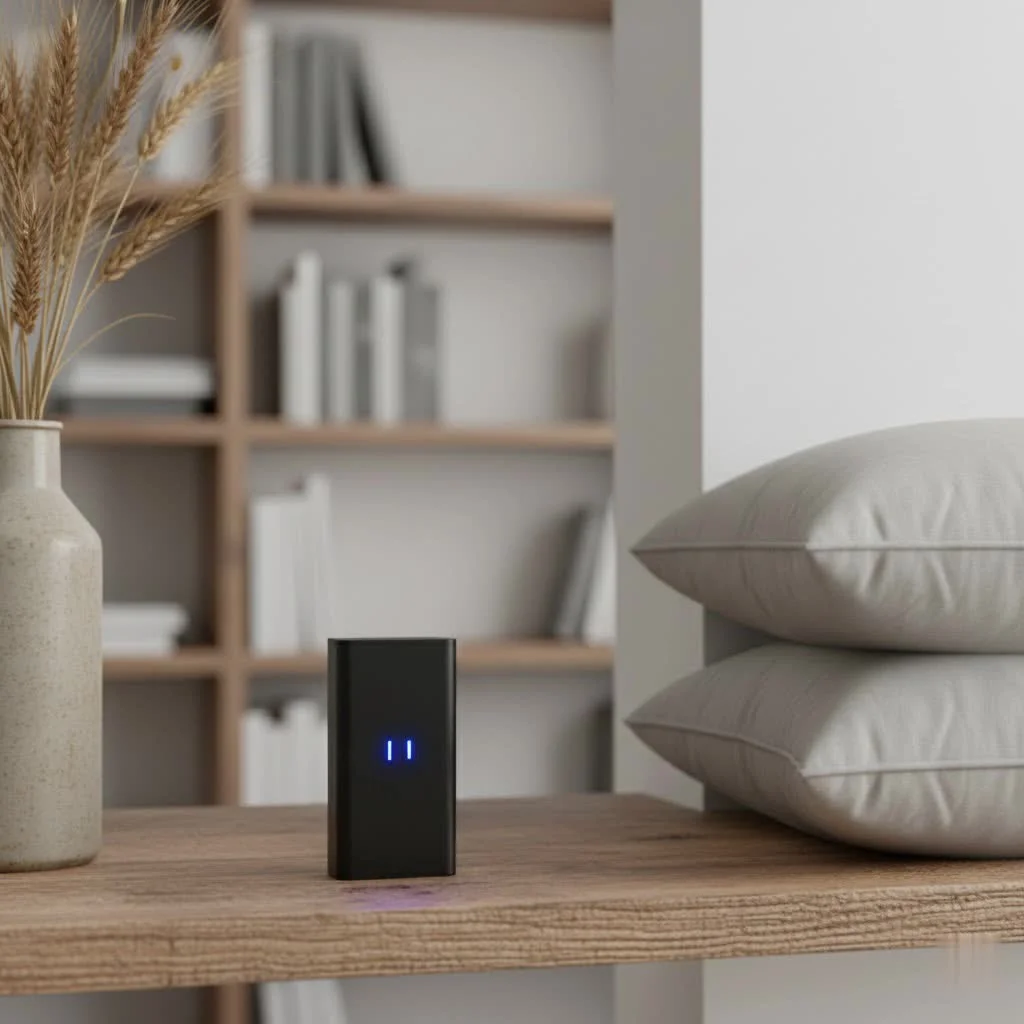
A Bluetooth 5.0 dongle is a small USB device that upgrades an older computer with the latest Bluetooth 5.0 capabilities, offering double the data transfer rates (up to 3 Mbps for LE connections) and quadrupled range (up to 40 meters indoors) compared to Bluetooth 4.0. This upgrade provides faster speeds, extended range, improved energy efficiency, and more stable multi-device connectivity, making wireless peripherals more responsive and reliable.
What Exactly is a Bluetooth 5.0 Dongle?
Simply put, a Bluetooth 5.0 dongle is a small, often USB-based, device that you plug into your computer to give it the latest Bluetooth 5.0 capabilities. Think of it as a wireless bridge, allowing your older PC or laptop to communicate with modern Bluetooth devices using the most current, efficient, and robust standard. If your computer lacks built-in Bluetooth, or if it has an older version (like 4.0 or 4.2), a dongle instantly brings it up to speed. It’s a cost-effective way to unlock a world of wireless convenience without needing to buy a brand-new machine.
Unleashing the Full Potential: Key Benefits of Bluetooth 5.0
Moving to a Bluetooth 5.0 dongle offers a significant leap over previous generations, addressing common frustrations and opening up new possibilities.
Blazing Fast Speeds
One of the most noticeable improvements with Bluetooth 5.0 is its speed. It boasts double the data transfer rates for Low Energy (LE) connections compared to Bluetooth 4.0, pushing speeds up to 2-3 Mbps. For data-hungry Internet of Things (IoT) devices, it can even achieve speeds of up to 5 Mbps. What does this mean for you? Quicker file transfers, more responsive peripherals, and a noticeable reduction in latency, making everything from typing to gaming feel much snappier.
Extended Range, Uninterrupted Freedom
Ever find your Bluetooth headphones cutting out when you step away from your desk? Bluetooth 5.0 tackles this head-on with a quadrupled range for Low Energy connections. While older versions might struggle beyond 10 meters, a quality Bluetooth 5.0 dongle can offer reliable connectivity up to 40 meters indoors and, in ideal open-space conditions, some Class 1 adapters can even reach an impressive 150 meters or more. This expanded reach means you can move freely around your home or office without losing your connection.
Energy Efficiency That Matters
Nobody likes constantly recharging their wireless devices. Bluetooth 5.0 is designed with optimized battery efficiency in mind, particularly for Bluetooth Low Energy (BLE) connections. This means your connected gadgets – like smartwatches, fitness trackers, or even your wireless mouse – can operate longer on a single charge, saving you time and hassle. It’s a win-win: better performance with less power consumption.
Seamless Multi-Device Connectivity
|
Our Picks for the Best Bluetooth Dongle in 2026
As an Amazon Associate I earn from qualifying purchases.
|
||
| Num | Product | Action |
|---|---|---|
| 1 | Fardriver Programmable Bluetooth Dongle Controller for E-Bike,Programmable Bluetooth Adapter Compatible with Fardriver E Bike |

|
| 2 | Fardriver Programmable Bluetooth Dongle for Fardriver Controller, Bluetooth Adapter Compatible with Fardriver E Bike Programming Module |
|
| 3 | Fardriver Bluetooth Dongle,Programmable Adapter,Bluetooth Dongle for Ebike Controller,Compatible with Fardriver Controller |
|
| 4 | ASUS USB-BT500 USB Adapter with Ultra Small Design, Bluetooth 5, Backward Compatible with Bluetooth®2.1/3.x/4.x, TAA Compliant (USB-BT500) |
|
| 5 | UGREEN USB Bluetooth 5.3 Adapter for PC, Plug & Play for Windows 11/10/8.1, Bluetooth Receiver & Transmitter for Keyboard/Mouse/Headphone/Speakers/Printer |
|
| 6 | TP-Link USB Bluetooth Adapter for PC - Bluetooth 5.4 Dongle Receiver, Plug and Play, Nano Design, EDR & BLE, Supports Windows 11/10/8.1/7 for Desktop, Laptop, Keyboard, Mouse, etc (UB500) |
|
| 7 | TP-Link USB Bluetooth Adapter for PC, Bluetooth 5.3 Long Range Receiver, Plug and Play, Adjustable Antenna, Supports Windows 11/10/8.1/7 for Desktop, Laptop, Keyboard, Mouse, etc (UB500 Plus) |
|
| 8 | Ebike Programmable Bluetooth Dongle for Fardriver Controller,Bluetooth Adapter,Compatible with Soleil01 Electric Bicycles |
|
| 9 | Avantree DG45 USB Bluetooth Adapter Dongle for PC, Computer, Desktop & Laptop, Compatible with Windows 11/10/8.1/8 Only - Connects Bluetooth Headphones, Speakers, Keyboards, Mice & Printers (Not 2.4G) |
|
| 10 | Fardriver Programmable Wireless Adapter Dongle Fardriver Controller Programming Module |
|
Juggling multiple Bluetooth devices can sometimes feel like a circus act with older standards. Bluetooth 5.0 is engineered to handle more concurrent connections with greater stability. Many Bluetooth 5.0 dongles can effortlessly manage up to seven active devices simultaneously, allowing you to connect your headphones, keyboard, mouse, gamepad, and more without frustrating dropouts or performance dips.
Enhanced Reliability and Interference Resistance
In a world saturated with wireless signals from Wi-Fi routers, microwaves, and other devices, interference can be a real problem for wireless connections. Bluetooth 5.0 introduces improved signal resilience and better resistance to interference, leading to a more stable and consistent connection. This means fewer disconnections and a smoother user experience, even in crowded wireless environments.
Choosing Your Perfect Bluetooth 5.0 Dongle: A Buyer’s Guide
With so many options on the market, how do you pick the right Bluetooth 5.0 dongle for your needs? Here are the key factors to consider.
Compatibility is King: OS, USB Ports, and Existing Bluetooth
First and foremost, ensure the dongle is compatible with your operating system. Most modern dongles support Windows 10 and 11, often with plug-and-play functionality. However, if you’re on macOS or Linux, you’ll need to check for explicit support, as setup might require a bit more technical involvement or specific chipsets like Realtek RTL8761B or Broadcom BCM20702 for broader compatibility. Also, consider your USB ports: while most dongles work with USB 2.0, some Bluetooth 5.0 adapters perform optimally and avoid driver errors when plugged into a USB 3.0 port. If your computer already has Bluetooth, you might need to disable the built-in adapter in Device Manager to prevent conflicts, as Windows often prefers to run only one Bluetooth adapter at a time.
Understanding Range and Class: How Far Do You Need to Go?
Bluetooth dongles come in different “classes,” which indicate their transmission power and, consequently, their range. Class 2 dongles are the most common, offering a standard range of about 10 meters (33 feet). If you need to connect devices across larger rooms, multiple floors, or even outdoors, look for a Class 1 Bluetooth 5.0 dongle, which can provide extended ranges up to 100 meters (330 feet) or more. For truly expansive spaces, some specialized long-range adapters with external antennas can achieve up to 150 meters.
Speed and Audio Quality: For Gamers and Audiophiles
While Bluetooth 5.0 inherently offers faster speeds, if you’re a gamer or an audiophile, you’ll want to pay extra attention. For gaming, low latency is crucial. Look for dongles that support advanced audio codecs like aptX Adaptive Low Latency, which can significantly reduce delay between your game and your headset. For high-fidelity audio streaming, ensure the dongle (and your audio device) supports high-quality codecs to get the best possible sound experience.
Form Factor: USB vs. Internal
Most Bluetooth 5.0 dongles come in a compact USB stick form factor, ideal for laptops where they can sit almost flush with the port. These are incredibly portable and easy to install. For desktop users, there are also internal PCI-e adapters, which often combine Bluetooth with Wi-Fi capabilities, offering a more permanent and integrated solution. Your choice depends on your device and how much you value portability versus a fixed, integrated setup.
Reputable Brands and Chipsets: Trustworthy Choices
Investing in a dongle from a reputable brand can save you a lot of headaches. Brands like ASUS, Plugable, UGREEN, TP-Link, Creative, and StarTech.com are well-regarded in the market. Paying attention to the chipset can be beneficial. Genuine CSR8510 A10 chipsets, for instance, are known for their reliability and are used by major OEMs. While cheaper, generic dongles might be tempting, they can sometimes fall short of advertised Bluetooth 5.0 performance or have driver issues.
Setting Up Your Bluetooth 5.0 Dongle: A Step-by-Step Guide
Getting your Bluetooth 5.0 dongle up and running is usually a straightforward process.
Simple Plug-and-Play (for most Windows users)
For most modern Windows 10 and 11 systems, installing a Bluetooth 5.0 dongle is remarkably simple:
- Insert the Dongle: Plug the Bluetooth 5.0 dongle into an available USB port on your computer. As mentioned, a USB 3.0 port is often recommended for optimal performance.
- Automatic Detection: Windows will typically detect the new hardware automatically and install a generic Bluetooth driver. You might see a “Device setup complete” notification.
- Check Device Manager: To confirm, open Device Manager (search for it in the Start menu) and look under “Bluetooth.” You should see your new adapter listed, often with the manufacturer’s name.
- Disable Old Bluetooth (If Applicable): If you had existing Bluetooth, you might need to right-click on the old adapter in Device Manager and select “Disable device” to prevent conflicts.
Manual Driver Installation (When You Need It)
Sometimes, Windows might not install the ideal driver, or you might be using an older operating system (like Windows 7/8.1) or a specific Linux distribution. In these cases:
- Download Drivers: Visit the manufacturer’s website for your specific Bluetooth 5.0 dongle model and download the latest drivers. Some dongles also come with a mini-CD containing drivers.
- Uninstall Conflicting Drivers: Before installing new drivers, it’s often best to uninstall any existing Bluetooth drivers in Device Manager to avoid software conflicts.
- Run Installer: Execute the driver installer program and follow the on-screen instructions. You may need to restart your computer after installation is complete.
Pairing Your Devices: Connecting to Your Gadgets
Once the dongle is installed and drivers are good to go, pairing your devices is next:
- Enable Bluetooth on PC: Go to your computer’s Bluetooth settings (on Windows, search “Bluetooth & other devices”). Make sure Bluetooth is toggled “On.”
- Put Device in Pairing Mode: Turn on your Bluetooth device (headphones, mouse, etc.) and put it into pairing mode. This usually involves holding down a power or dedicated pairing button until an LED indicator flashes.
- Add Device: In your computer’s Bluetooth settings, click “Add Bluetooth or other device,” then select “Bluetooth.”
- Select Your Device: Your device should appear in the list. Click on its name, and follow any on-screen prompts to complete the pairing process. You’re all set!
Troubleshooting Common Bluetooth 5.0 Dongle Issues
Even with the best hardware, occasional hiccups can occur. Here’s how to troubleshoot some common issues with your Bluetooth 5.0 dongle.
Dongle Not Recognized or Driver Errors
If your dongle isn’t showing up or you’re getting a “Code 31” error in Device Manager, try these steps:
- Change USB Port: Unplug the dongle and try a different USB port, especially a USB 3.0 port if you’re using a Bluetooth 5.0 dongle.
- Restart Your PC: A simple reboot can often resolve minor driver issues.
- Disable Onboard Bluetooth: If your computer has built-in Bluetooth, disable it in Device Manager. Windows sometimes struggles to manage two Bluetooth adapters simultaneously.
- Manual Driver Installation: Reinstall drivers from the manufacturer’s website as detailed in the installation guide.
Poor Connection or Limited Range
Experiencing weaker signals or devices disconnecting too easily?
- Reduce Obstructions: Physical barriers like walls, furniture, and even people can block Bluetooth signals. Ensure a clear line of sight if possible.
- Check for Interference: Wi-Fi routers, cordless phones, and even microwave ovens can interfere with Bluetooth signals. Try moving your dongle or devices away from these sources. A USB extension cable can sometimes help reposition the dongle for better signal reception.
- Device Range: that Bluetooth range is limited by both the dongle and the connected device. Ensure your other Bluetooth device isn’t the limiting factor.
Audio Lag or Disconnections
For audio-specific problems:
- Restart Playback: If you notice video or sound delays, try restarting your multimedia player.
- Reboot Devices: Turn off and on both your Bluetooth audio device and your computer.
- Check Codecs: Ensure your dongle and audio device are utilizing the best available audio codecs for low latency and high quality.
- Network Speed: If streaming audio or video online, ensure your internet connection is stable and fast enough, as this can often be mistaken for a Bluetooth issue.
Device Not Pairing
If your device just won’t connect:
- Pairing Mode: Double-check that your Bluetooth device is in discoverable pairing mode.
- Forget and Re-pair: On your computer’s Bluetooth settings, “Remove device” for the problematic gadget, then try pairing it again from scratch.
- PC Discoverability: Make sure your PC is discoverable by other Bluetooth devices. In Windows, go to “Bluetooth & other devices” and then “More Bluetooth options” to check the “Allow Bluetooth devices to find this PC” setting.
- Proximity: During the initial pairing process, keep your Bluetooth device close to the dongle, ideally within 2 meters.
Top Bluetooth 5.0 Dongles on the Market Today
In my over a decade of experience with wireless technologies, I’ve seen countless dongles come and go. Here at Qisac.com, we understand what makes a Bluetooth 5.0 dongle truly exceptional. When looking for a reliable option, several brands consistently stand out.
For a solid all-rounder, devices like the ASUS USB-BT500 are often highly recommended for their robust performance and broad compatibility, even offering good range and speed for everyday use. If you’re primarily a Windows user seeking expanded range and higher LE speeds, the Plugable USB Bluetooth 5.0 Adapter offers impressive performance, often reaching up to 40 meters. Gamers and audiophiles might lean towards options like the Creative BT-W5, which often features USB-C connectivity and supports advanced codecs like aptX Adaptive Low Latency for an immersive, lag-free experience across various platforms, including Mac and even some gaming consoles.
For those needing to connect multiple devices simultaneously without a fuss, the UGREEN USB Bluetooth 5.3 Adapter (backward compatible with 5.0) provides stable connections for up to five different Bluetooth devices, making it a great choice for a busy workstation. And if you’re on a budget but still want dependable Bluetooth 5.0 performance, the TP-Link UB500 consistently offers excellent value.
As Dr. Amelia Hayes, a lead wireless connectivity architect at Qisac.com, often highlights, “The shift to Bluetooth 5.0 dongles isn’t just an incremental update; it’s a fundamental enhancement that redefines stability, speed, and versatility for all your wireless peripherals. It truly bridges the gap between older systems and the demands of modern connected living.” Choosing a dongle from a reputable brand with a proven chipset is your best bet for long-term satisfaction.
Frequently Asked Questions (FAQ)
Can a Bluetooth 5.0 dongle improve gaming performance?
Absolutely! A Bluetooth 5.0 dongle can significantly reduce latency and improve connection stability, which are crucial for gaming. Look for dongles that specifically support low-latency audio codecs like aptX Adaptive Low Latency for the best experience.
Is Bluetooth 5.0 backward compatible?
Yes, Bluetooth 5.0 is designed to be fully backward compatible with older Bluetooth versions, including 4.0, 3.0, 2.1, 2.0, and 1.1. This means your existing Bluetooth devices will still connect, but they will operate at the older standard’s speed and range limitations.
Will a Bluetooth 5.0 dongle work with my Mac or Linux computer?
While many Bluetooth 5.0 dongles are primarily advertised for Windows, some are compatible with macOS and Linux. You’ll need to check the product specifications carefully. Setup on non-Windows systems might require more technical steps, such as manual driver configuration or utilizing specific kernel-level Bluetooth stacks.
What’s the real-world range of a Bluetooth 5.0 dongle?
While theoretical maximums can reach up to 240 meters in open space, the real-world range for a typical Bluetooth 5.0 dongle is usually between 10 to 40 meters indoors, depending on environmental factors like walls and interference. Class 1 dongles can extend this significantly.
Do I need to install drivers for a Bluetooth 5.0 dongle?
For Windows 10 and 11, most Bluetooth 5.0 dongles are plug-and-play, with drivers installing automatically. However, for full functionality, specific features, or if you’re using an older OS or encountering issues, installing the manufacturer’s proprietary drivers is often recommended.
Conclusion
Upgrading your system with a Bluetooth 5.0 dongle is one of the smartest and most impactful enhancements you can make for your wireless connectivity. It revitalizes older computers, offering substantial improvements in speed, range, energy efficiency, and multi-device support. Gone are the days of frustrating dropouts and slow connections; with Bluetooth 5.0, you unlock a seamless, reliable, and highly responsive wireless experience that keeps pace with your digital life. Don’t let outdated technology hold you back – embrace the future of wireless connectivity today and experience the difference a quality Bluetooth 5.0 dongle can make.
Frequently Asked Questions
Can a Bluetooth 5.0 dongle improve gaming performance?
Yes, a Bluetooth 5.0 dongle can significantly improve gaming performance by reducing latency and enhancing connection stability. For optimal results, look for dongles that support low-latency audio codecs such as aptX Adaptive Low Latency, which can minimize delays between your game and headset.
Is Bluetooth 5.0 backward compatible with older devices?
Yes, Bluetooth 5.0 is fully backward compatible with previous Bluetooth versions, including 4.0, 3.0, 2.1, 2.0, and 1.1. This means your existing Bluetooth devices will still connect, but they will operate at the speed and range limitations of their older standard, not the full 5.0 capabilities.
What is the typical real-world range of a Bluetooth 5.0 dongle?
While theoretical maximums can reach up to 240 meters in open space, the real-world range for a standard Bluetooth 5.0 dongle is typically between 10 to 40 meters indoors. This range can vary based on environmental factors like walls, furniture, and signal interference. Class 1 dongles can extend this range significantly, often up to 100 meters or more.
Do I need to install drivers for a new Bluetooth 5.0 dongle?
For most Windows 10 and 11 systems, Bluetooth 5.0 dongles are plug-and-play, with drivers installing automatically upon insertion. However, for full functionality, specific features, or if you are using an older operating system like Windows 7/8.1, installing the manufacturer's proprietary drivers is often recommended to avoid issues.
How does a Bluetooth 5.0 dongle improve energy efficiency?
Bluetooth 5.0 is designed with optimized battery efficiency, especially for Bluetooth Low Energy (BLE) connections. This means connected devices like smartwatches, fitness trackers, and wireless mice can operate longer on a single charge, providing better performance with reduced power consumption compared to older Bluetooth versions.
Setting Up Your Bluetooth 5.0 Dongle
This guide provides step-by-step instructions for installing and pairing your Bluetooth 5.0 dongle, covering both plug-and-play and manual driver installation methods.
Plug the Bluetooth 5.0 dongle into an available USB port on your computer, preferably a USB 3.0 port for optimal performance. For most Windows 10/11 systems, the operating system will automatically detect the hardware and install a generic Bluetooth driver. Verify installation by checking Device Manager under 'Bluetooth'.
If Windows doesn't install the ideal driver, or if you're using an older OS or Linux, download the latest drivers from the manufacturer's website. Uninstall any conflicting existing Bluetooth drivers in Device Manager first, then run the new driver installer and restart your computer if prompted.
Enable Bluetooth in your computer's settings and put your Bluetooth device (headphones, mouse, etc.) into pairing mode. In your computer's Bluetooth settings, click 'Add Bluetooth or other device,' select 'Bluetooth,' and then choose your device from the list to complete the pairing process. Keep devices close during initial pairing.
Pet products vetted on real animals
Practical specs, not advice. Unsubscribe anytime.

I was so tired of my old Bluetooth 4.0 dropping connections with my headphones. This Bluetooth 5.0 dongle was a game-changer! The extended range is no joke; I can walk into my kitchen now without losing audio, which is about 30 meters from my office. Setup was super easy too, just plug and play on my Windows 10 PC.
The dongle works as advertised for the most part, giving me Bluetooth 5.0 on my older laptop. I appreciate the improved energy efficiency, my wireless earbuds seem to last a bit longer now. My only minor complaint is that it sticks out a little more than I expected from the USB port, making it a bit awkward if I’m using it on the go.
Got this to upgrade my desktop that didn’t have any built-in Bluetooth. It works great for connecting my wireless mouse and keyboard, and I’ve noticed the connection is really stable. The data transfer rates for my file sharing are definitely faster than what I used to get with my laptop’s older Bluetooth. Very happy with the performance.
This little device brought my ancient PC into the modern age! I can now connect multiple devices without any lag, which was a huge problem before. The stability for multi-device connectivity is fantastic, especially when I’m switching between my gaming controller and my speakers. Definitely worth the small investment.