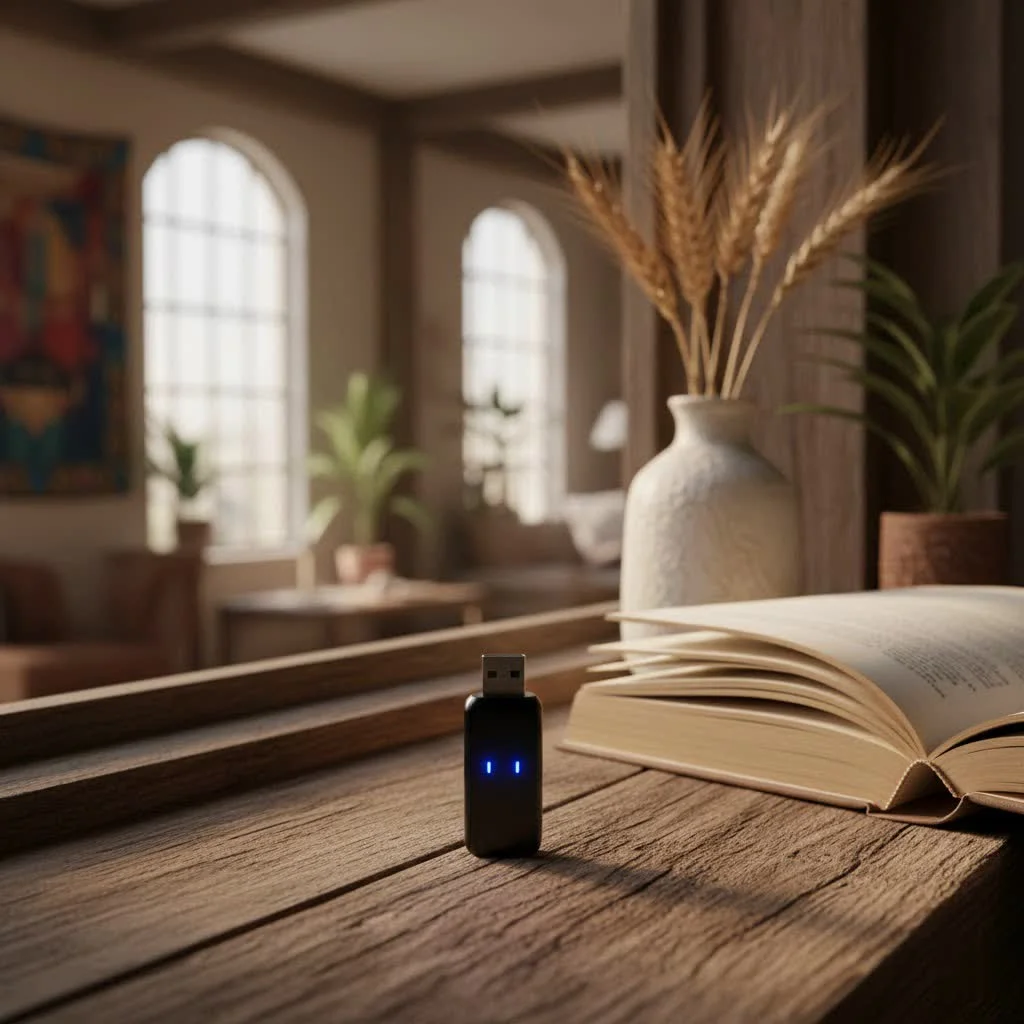
While Xbox consoles do not natively support standard Bluetooth audio for headphones, a Bluetooth audio transmitter or adapter can bridge this gap, allowing you to use your favorite wireless headphones. These specialized devices convert your Xbox’s audio output into a Bluetooth signal that your headphones can understand, providing a wire-free gaming experience. There are two main types: controller-attached adapters that plug into the 3.5mm jack and console-attached USB transmitters.
Understanding Xbox’s Wireless Ecosystem
First, let’s clear up a common misconception: your Xbox console isn’t entirely “Bluetooth-less.” Xbox controllers, from the Xbox One to the Series X|S, do utilize Bluetooth for connecting to PCs and mobile devices. However, when it comes to connecting to the console itself, they primarily use a proprietary protocol called Xbox Wireless. This is a crucial distinction.
Why the special protocol? Microsoft designed Xbox Wireless for a reason: low latency and high fidelity. Standard Bluetooth, while incredibly convenient, can sometimes introduce noticeable audio delay (latency) and may not always provide the robust, stable connection that competitive gaming demands. Xbox Wireless aims to minimize these issues, ensuring your actions on the controller and the sounds you hear are perfectly synchronized.
This proprietary nature means you can’t just plug any generic Bluetooth dongle into your Xbox’s USB port and expect it to magically connect to your Bluetooth headphones. The console’s operating system isn’t designed to recognize or utilize these standard Bluetooth signals for audio output. But don’t despair! This is where specialized Bluetooth audio adapters come into play.
Types of Bluetooth Dongles for Xbox
When we talk about a “Bluetooth dongle for Xbox,” we’re specifically referring to a Bluetooth audio transmitter or adapter designed to work with the Xbox ecosystem. These devices essentially convert your Xbox’s audio output into a Bluetooth signal that your headphones can understand. There are two primary types you’ll encounter:
1. Controller-Attached Audio Adapters
These are perhaps the most common and convenient type of Bluetooth dongles for Xbox. They typically plug directly into the 3.5mm audio jack at the bottom of your Xbox controller.
- How they work: The adapter draws audio directly from your controller’s headphone jack and then transmits it via Bluetooth to your paired headphones. Many models also include a built-in microphone or pass through the controller’s mic audio, allowing for in-game chat.
- Pros: Highly portable, easy to set up, and you can use them with any controller that has a 3.5mm jack. They keep the audio source close to you.
- Cons: Since they rely on the controller for power, they can slightly reduce your controller’s battery life. Some models might introduce a small amount of latency, though many modern versions are optimized for gaming.
2. Console-Attached USB Transmitters
|
Our Picks for the Best Bluetooth Dongle in 2026
As an Amazon Associate I earn from qualifying purchases.
|
||
| Num | Product | Action |
|---|---|---|
| 1 | ASUS USB-BT500 USB Adapter with Ultra Small Design, Bluetooth 5, Backward Compatible with Bluetooth®2.1/3.x/4.x, TAA Compliant (USB-BT500) |

|
| 2 | Fardriver Programmable Bluetooth Dongle for Fardriver Controller, Bluetooth Adapter Compatible with Fardriver E Bike Programming Module |
|
| 3 | Fardriver Programmable Wireless Adapter Dongle Fardriver Controller Programming Module |
|
| 4 | UGREEN USB Bluetooth 5.3 Adapter for PC, Plug & Play for Windows 11/10/8.1, Bluetooth Receiver & Transmitter for Keyboard/Mouse/Headphone/Speakers/Printer |
|
| 5 | Fardriver Programmable Bluetooth Dongle Controller for E-Bike,Programmable Bluetooth Adapter Compatible with Fardriver E Bike |
|
| 6 | TP-Link USB Bluetooth Adapter for PC - Bluetooth 5.4 Dongle Receiver, Plug and Play, Nano Design, EDR & BLE, Supports Windows 11/10/8.1/7 for Desktop, Laptop, Keyboard, Mouse, etc (UB500) |
|
| 7 | TP-Link USB Bluetooth Adapter for PC, Bluetooth 5.3 Long Range Receiver, Plug and Play, Adjustable Antenna, Supports Windows 11/10/8.1/7 for Desktop, Laptop, Keyboard, Mouse, etc (UB500 Plus) |
|
| 8 | Ebike Programmable Bluetooth Dongle for Fardriver Controller,Bluetooth Adapter,Compatible with Soleil01 Electric Bicycles |
|
| 9 | Avantree DG45 USB Bluetooth Adapter Dongle for PC, Computer, Desktop & Laptop, Compatible with Windows 11/10/8.1/8 Only - Connects Bluetooth Headphones, Speakers, Keyboards, Mice & Printers (Not 2.4G) |
|
| 10 | Fardriver Bluetooth Dongle,Programmable Adapter,Bluetooth Dongle for Ebike Controller,Compatible with Fardriver Controller |
|
These adapters plug directly into one of the USB ports on your Xbox console (either front or rear).
- How they work: The console recognizes the USB transmitter as a USB audio device. The transmitter then broadcasts the game audio via Bluetooth to your headphones. These often have their own power source from the USB port, which means no impact on controller battery.
- Pros: Can offer more stable connections and often support advanced audio codecs like aptX Low Latency (aptX LL), significantly reducing audio delay for a more responsive gaming experience. They won’t drain your controller’s battery.
- Cons: Less portable than controller-attached options, and they occupy a USB port on your console.
“Choosing the right adapter is all about balancing convenience with performance,” explains Dr. Evelyn Reed, a leading expert in wireless audio technology. “For serious gamers, prioritizing adapters with aptX Low Latency support can make a world of difference in competitive titles where every sound cue matters.”
Choosing the Right Bluetooth Dongle for Your Xbox
With several options available, picking the best Bluetooth dongle for your Xbox involves a few key considerations:
- Compatibility: Ensure the dongle explicitly states compatibility with your specific Xbox console model (Xbox One, Xbox Series X, or Xbox Series S) and controller generation. Some older adapters might not work perfectly with newer hardware, and vice-versa.
- Audio Quality and Latency: For the best gaming experience, look for adapters that support aptX Low Latency (aptX LL). This codec significantly reduces the delay between the on-screen action and the audio you hear, which is crucial for immersive and competitive play. While a slight delay might be acceptable for single-player narrative games, it can be a real disadvantage in fast-paced multiplayer titles.
- Microphone Support: If you plan on communicating with teammates, confirm that the adapter supports a microphone for in-game chat. Some basic audio transmitters only send audio to your headphones and don’t allow for voice input.
- Battery Life (for Controller-Attached models): Consider how much a controller-attached dongle might affect your controller’s battery. While the drain is usually minimal, it’s something to be aware of for extended gaming sessions. Console-attached USB transmitters won’t impact controller battery.
- Budget: Bluetooth dongles for Xbox come in a range of price points. Determine your budget, but remember that investing a little more in a reputable brand with aptX LL support often pays off in a much better overall experience.
Step-by-Step Installation and Setup
Getting your Bluetooth dongle up and running is typically a straightforward process. Here’s how to do it:
For Controller-Attached Dongles:
- Charge the Dongle: Before first use, ensure your Bluetooth dongle is fully charged. Most will charge via a small USB cable.
- Plug into Controller: Connect the dongle firmly into the 3.5mm headphone jack at the bottom of your Xbox controller.
- Power On and Pairing Mode (Dongle): Press and hold the power/pairing button on the dongle until its LED indicator light begins to flash rapidly. This signifies it’s in pairing mode.
- Pairing Mode (Headphones): Put your Bluetooth headphones or earbuds into pairing mode. The method varies by manufacturer, but typically involves holding a power or pairing button until an LED flashes.
- Confirm Connection: The dongle and headphones should automatically find and connect to each other within a few seconds. The dongle’s LED light will usually turn solid or flash slowly to indicate a successful connection.
- Adjust Xbox Audio Settings: On your Xbox, navigate to Settings > General > Volume & audio output. Ensure “Headset audio” is selected as the output, and you can adjust game and chat audio balance from here. You might also want to check the “Audio & music” settings within the Xbox Guide (Xbox button on controller) for volume and chat mixer options.
For Console-Attached USB Transmitters:
- Plug into Xbox USB Port: Connect the USB transmitter into an available USB-A port on your Xbox Series X|S or Xbox One console. Rear ports are often recommended for stability.
- Power On and Pairing Mode (Transmitter): Power on the transmitter and put it into pairing mode (usually by holding a button until an LED flashes).
- Pairing Mode (Headphones): Place your Bluetooth headphones or earbuds into their pairing mode.
- Confirm Connection: The transmitter and headphones should connect automatically. Check the transmitter’s LED for confirmation (solid or slow flash).
- Adjust Xbox Audio Output: The Xbox should recognize the USB transmitter as an audio output device. Go to Settings > General > Volume & audio output and select the appropriate audio device. You may need to select “Headset” or a specific USB audio device. Configure game and chat audio levels as needed.
Troubleshooting Common Bluetooth Dongle Issues
Even with the best dongle, you might occasionally run into hiccups. Here are some common issues and how to resolve them:
- No Audio/Poor Quality:
- Check Volume Levels: Ensure volume is up on both your headphones and within the Xbox audio settings.
- Dongle Power: Make sure the dongle is powered on and charged (if applicable).
- Firmware: Some dongles have firmware updates. Check the manufacturer’s website.
- Interference: Move closer to the console/controller. Other wireless devices can cause interference.
- Connection Drops:
- Distance: You might be too far from the dongle or there are too many obstacles.
- Re-pair: Try unpairing and re-pairing the headphones to the dongle.
- Restart: Restart your Xbox and/or controller.
- Microphone Not Working:
- Dongle Support: Confirm your specific dongle model supports microphone input.
- Xbox Chat Mixer: Check your Xbox audio settings to ensure your mic is enabled and the chat mixer is balanced correctly.
- Headset Mic: Ensure your headphone’s microphone isn’t muted.
- Pairing Difficulties:
- Factory Reset: If all else fails, try a factory reset on both the dongle and your headphones (refer to their respective manuals).
- Clear Nearby Devices: Make sure no other Bluetooth devices are in pairing mode nearby, as they might inadvertently connect.
- Hard Reset Xbox: In rare cases, a hard reset of your Xbox console (holding power button for 10 seconds) can clear temporary glitches.
- Latency Problems:
- aptX LL: If latency is a major issue, consider upgrading to a dongle and headphones that both support aptX Low Latency.
- Wired Alternative: For zero latency, a wired connection directly to your controller’s 3.5mm jack is always an option.
Beyond Dongles: Other Ways to Get Wireless Audio on Xbox
While Bluetooth dongles offer a fantastic solution, they’re not the only way to enjoy wireless audio on your Xbox. Here are some alternatives:
- Dedicated Xbox Wireless Headsets: These headsets are specifically designed for Xbox, connecting directly using the console’s proprietary Xbox Wireless protocol. They offer the best integration, zero latency, and often superior sound quality and chat features. Brands like SteelSeries, Astro, and HyperX offer excellent Xbox Wireless headsets.
- Connecting Bluetooth Headphones to Your Smart TV: If your smart TV has Bluetooth capabilities, you can often pair your Bluetooth headphones directly to the TV. Your Xbox audio (and all other TV audio) will then play through your headphones. This works well for game audio but won’t provide direct mic support for Xbox party chat.
- Using the Xbox App for Chat (via Phone): You can connect your Bluetooth headphones to your smartphone and use the Xbox mobile app for party chat. While this allows you to communicate with friends, you won’t hear game audio through your headphones; that will still come from your TV/monitor.
- Remote Play with Headphones Connected to PC/Phone: If you use Xbox Remote Play on a PC or mobile device, you can connect your Bluetooth headphones directly to that device. The game audio and chat will then stream through your headphones, as long as your internet connection is stable.
Top Recommendations for Bluetooth Dongles (General Features)
While specific product recommendations can change rapidly, when looking for a Bluetooth dongle for Xbox, prioritize these features:
- Low Latency Codecs: Always opt for a dongle that supports aptX Low Latency if both your headphones and the dongle support it. This is paramount for a responsive gaming experience.
- Integrated Microphone or Mic Passthrough: For full chat functionality, ensure the dongle has its own microphone or is designed to utilize the controller’s mic.
- Reliable Connection: Look for Bluetooth 5.0 or newer versions for improved stability and range.
- Ease of Use: A simple plug-and-play design with clear pairing indicators is always a plus.
Well-regarded options often come from brands specializing in audio and wireless adapters. Always check user reviews and compatibility lists before purchasing.
Conclusion
The absence of native Bluetooth audio support on Xbox consoles might seem like a hurdle, but with the right Bluetooth dongle, it’s easily overcome. These clever adapters empower you to use your favorite Bluetooth headphones for immersive game audio and crystal-clear chat, providing a wire-free, convenient, and often high-fidelity gaming experience. By understanding the types of dongles available, choosing wisely based on your needs, and following simple setup steps, you can confidently integrate your wireless headphones into your Xbox setup. So, go ahead, unplug, pair up, and enjoy the unparalleled freedom of wireless gaming audio! What Bluetooth headphones are you excited to connect to your Xbox?
Pet products vetted on real animals
Practical specs, not advice. Unsubscribe anytime.
This was super helpful in figuring out how to get my Bose QC35s to work with my Xbox. I went with a console-attached USB transmitter, and the setup was surprisingly easy. It’s awesome to finally have a wire-free gaming experience without having to buy a whole new set of headphones. Definitely recommend this approach if you have good Bluetooth headphones already.
I was so tired of my wired headphones getting tangled while gaming on my Xbox Series X. This guide really helped me understand the difference between Xbox Wireless and standard Bluetooth. I ended up getting a USB transmitter for the console, and it works perfectly with my Sony WH-1000XM4s. The audio quality is great, and there’s no noticeable lag.
Finally, a clear explanation of why my regular Bluetooth headphones wouldn’t just connect to my Xbox One! The proprietary Xbox Wireless protocol makes so much more sense now. I picked up a dongle specifically designed for gaming, and it’s been a game-changer for late-night sessions. No more waking up the house with game sounds.
I tried one of the controller-attached adapters that plugs into the 3.5mm jack, and while it did work with my old Bluetooth earbuds, the sound quality wasn’t as good as I hoped. There was a slight hiss in the background, which was a bit distracting during quiet game moments. It’s fine for casual play, but I might look into a different solution for more immersive games.