A Bluetooth 4.0 dongle is a compact USB adapter that adds Bluetooth wireless capabilities to your computer, enabling it to connect with various Bluetooth-enabled devices. This technology, introduced in 2010, is notable for its Bluetooth Low Energy (BLE) feature, which significantly reduces power consumption for devices like fitness trackers and smart sensors. Even with newer standards available, Bluetooth 4.0 dongles remain a relevant and cost-effective solution for many users, offering reliable connectivity for common peripherals within a typical range of 10 meters (33 feet).
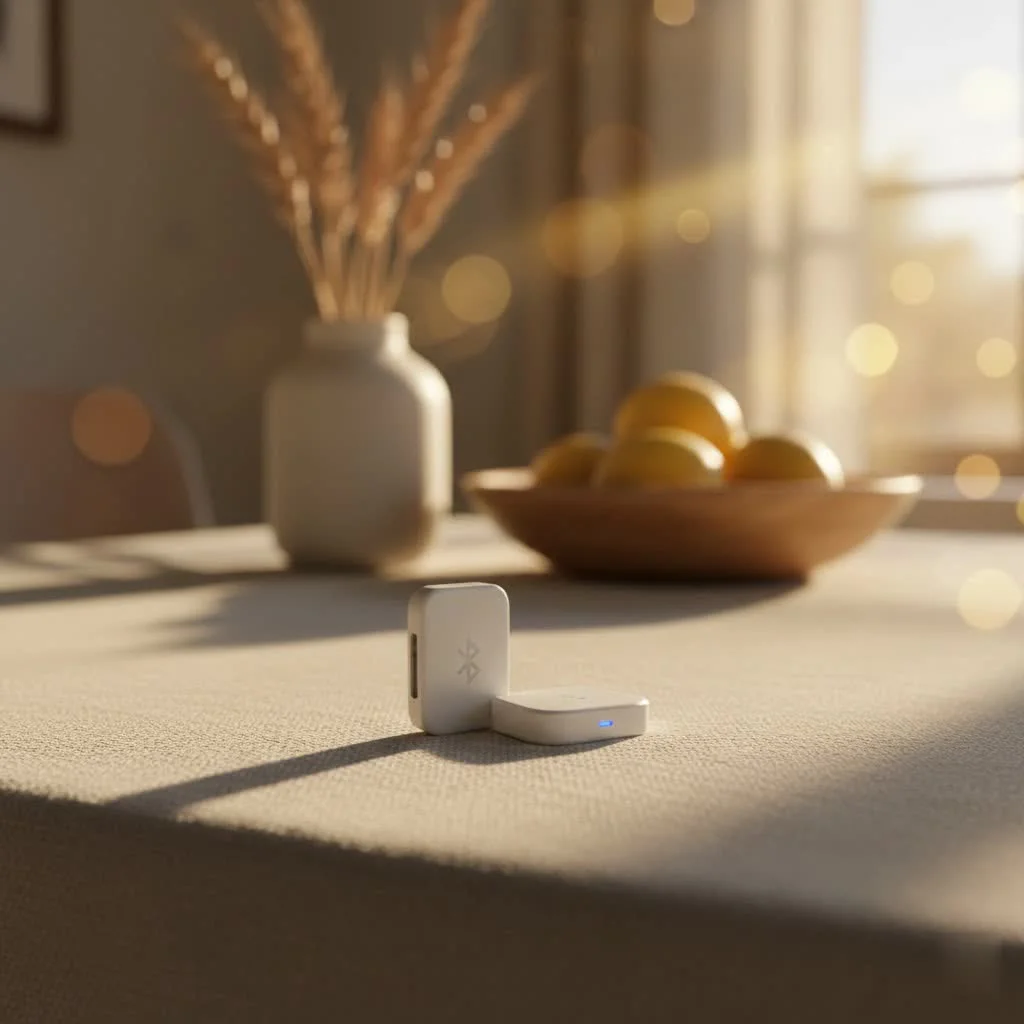
What Exactly is a Bluetooth 4.0 Dongle?
At its core, a Bluetooth 4.0 dongle is a compact USB adapter that grants your computer Bluetooth wireless capabilities. Think of it as plugging in a new sense for your PC, allowing it to communicate with a vast ecosystem of Bluetooth-enabled devices. The “4.0” in its name signifies a particular generation of Bluetooth technology, known for a groundbreaking feature: Bluetooth Low Energy (BLE).
BLE revolutionized how devices communicate, significantly reducing power consumption. This means your Bluetooth 4.0 dongle can maintain a connection with devices like fitness trackers or smart sensors for extended periods without draining their small batteries. Beyond BLE, these dongles also support Enhanced Data Rate (EDR), which allows for faster data transfers, crucial for smooth audio streaming or quick file sharing. Typically, a Class 2 Bluetooth 4.0 dongle offers an effective range of about 10 meters (33 feet), which is more than enough for most home or office setups, letting you connect multiple devices simultaneously. Many are also backward compatible, ensuring they can connect with older Bluetooth devices operating on versions like 2.0, 2.1, or 3.0.
Bluetooth 4.0 vs. Bluetooth 5.0: Do You Need to Upgrade?
It’s natural to wonder how Bluetooth 4.0 stacks up against its newer sibling, Bluetooth 5.0. While Bluetooth 5.0 certainly brings advancements, understanding the differences helps you decide if a bluetooth 4.0 dongle still meets your needs.
Here’s a quick comparison:
| Feature | Bluetooth 4.0 | Bluetooth 5.0 |
|---|---|---|
| Speed | Up to 1 Mbps | Up to 2 Mbps (2x faster) |
| Range | ~10m (indoor), ~50m (outdoor) | ~40m (indoor), ~200-240m (outdoor) (4x longer) |
| Message Capacity | ~31 bytes (for broadcasting) | ~255 bytes (8x larger) |
| Power Efficiency | Good (with BLE) | Improved (optimized for IoT) |
| IoT Focus | Introduced BLE, foundational for IoT | Highly optimized for IoT, smart home devices, wearables |
| Dual Audio | No | Yes (connect to two audio devices simultaneously) |
For many, a Bluetooth 4.0 dongle is still perfectly adequate. If you primarily need to connect a wireless mouse, keyboard, headset for calls, or stream music to a single speaker within a typical room, the speed and range of Bluetooth 4.0 are often sufficient. It’s a budget-friendly way to add essential wireless capabilities.
However, if you’re diving deep into the Internet of Things (IoT), need faster large file transfers, desire exceptionally long-range connectivity across multiple rooms, or want to stream audio to two separate headsets simultaneously, then upgrading to a Bluetooth 5.0 dongle would offer a noticeable performance boost. The good news is that Bluetooth 5.0 is backward compatible, meaning a newer dongle will still work with your older Bluetooth 4.0 devices, though you’ll only experience the features of the older standard in that connection.
Choosing the Right Bluetooth 4.0 Dongle for Your Needs
Selecting the perfect bluetooth 4.0 dongle doesn’t have to be complicated. Here’s what to look for:
- Operating System Compatibility: The vast majority of Bluetooth 4.0 dongles support Windows 10 and 11, often with plug-and-play functionality. Many also work with older Windows versions like 7 and 8. For macOS and Linux, support can vary, but most popular distributions have built-in drivers for common chipsets. Always check the product specifications for specific OS support.
- Range: While most USB dongles are Class 2 (10-meter range), some might boast slightly extended ranges. For typical use within a room, 10 meters is usually plenty.
- Brand Reputation: Stick with reputable brands known for their reliability and driver support. Companies like StarTech.com, Sabrent, TP-Link, and Plugable are often good choices. Their products usually come with good documentation and customer support.
- Form Factor: Bluetooth dongles come in various sizes. “Nano” or “micro” adapters are incredibly tiny and can be left in a laptop’s USB port almost unnoticed, perfect for portability. Standard-sized dongles might be slightly larger but often fit perfectly in a desktop PC.
- Driver Support: While many modern OSes will automatically detect and install generic drivers, having access to manufacturer-specific drivers (either on a bundled CD or a downloadable file from their website) is a big plus, especially for troubleshooting or unlocking full features.
Step-by-Step Installation Guide for Your Bluetooth 4.0 Dongle
Getting your new bluetooth 4.0 dongle up and running is typically straightforward.
For Windows 10/11
|
Our Picks for the Best Bluetooth Dongle in 2026
As an Amazon Associate I earn from qualifying purchases.
|
||
| Num | Product | Action |
|---|---|---|
| 1 | TP-Link USB Bluetooth Adapter for PC, Bluetooth 5.3 Long Range Receiver, Plug and Play, Adjustable Antenna, Supports Windows 11/10/8.1/7 for Desktop, Laptop, Keyboard, Mouse, etc (UB500 Plus) |

|
| 2 | Ebike Programmable Bluetooth Dongle for Fardriver Controller,Bluetooth Adapter,Compatible with Soleil01 Electric Bicycles |
|
| 3 | Fardriver Programmable Bluetooth Dongle for Fardriver Controller, Bluetooth Adapter Compatible with Fardriver E Bike Programming Module |
|
| 4 | Fardriver Programmable Bluetooth Dongle Controller for E-Bike,Programmable Bluetooth Adapter Compatible with Fardriver E Bike |
|
| 5 | UGREEN USB Bluetooth 5.3 Adapter for PC, Plug & Play for Windows 11/10/8.1, Bluetooth Receiver & Transmitter for Keyboard/Mouse/Headphone/Speakers/Printer |
|
| 6 | Fardriver Bluetooth Dongle,Programmable Adapter,Bluetooth Dongle for Ebike Controller,Compatible with Fardriver Controller |
|
| 7 | ASUS USB-BT500 USB Adapter with Ultra Small Design, Bluetooth 5, Backward Compatible with Bluetooth®2.1/3.x/4.x, TAA Compliant (USB-BT500) |
|
| 8 | Fardriver Programmable Wireless Adapter Dongle Fardriver Controller Programming Module |
|
| 9 | TP-Link USB Bluetooth Adapter for PC - Bluetooth 5.4 Dongle Receiver, Plug and Play, Nano Design, EDR & BLE, Supports Windows 11/10/8.1/7 for Desktop, Laptop, Keyboard, Mouse, etc (UB500) |
|
| 10 | Avantree DG45 USB Bluetooth Adapter Dongle for PC, Computer, Desktop & Laptop, Compatible with Windows 11/10/8.1/8 Only - Connects Bluetooth Headphones, Speakers, Keyboards, Mice & Printers (Not 2.4G) |
|
- Preparation: If your PC has built-in Bluetooth, consider temporarily disabling it in Device Manager to prevent conflicts with your new dongle. This is especially helpful if you’ve had issues with the onboard Bluetooth before.
- Plug It In: Insert your Bluetooth 4.0 dongle into an available USB port on your computer. It’s often best to use a direct port on your PC, avoiding USB hubs initially.
- Driver Installation:
- Automatic: Windows will often automatically detect the dongle and install the necessary drivers. Look for a notification in your system tray.
- From CD: If a driver CD came with your dongle, insert it and follow the on-screen instructions.
- Download: If Windows doesn’t install drivers automatically and there’s no CD, visit the dongle manufacturer’s website and download the latest drivers for your specific model and Windows version. Run the installer program (usually
setup.exe).
- Verify Installation:
- Open Device Manager (right-click the Start button and select “Device Manager”). Expand the “Bluetooth” section. You should see your dongle listed, perhaps by its chipset (e.g., CSR, Broadcom) or brand name, without any yellow exclamation marks.
- Go to Settings > Devices > Bluetooth & other devices. Ensure the Bluetooth toggle is switched “On.”
- Pairing Devices: Click “Add Bluetooth or other device” and follow the prompts to connect your Bluetooth peripherals.
For macOS/Linux
On macOS, most Bluetooth 4.0 dongles are often plug-and-play, integrating directly with the system’s Bluetooth preferences. For Linux, compatibility is generally good, with many dongles working out-of-the-box thanks to generic kernel modules. If not, specific driver packages might be available through your distribution’s repositories or the dongle manufacturer. Always use your system’s built-in Bluetooth settings to manage devices.
Troubleshooting Common Bluetooth 4.0 Dongle Problems
Even the most reliable tech can hit a snag. Here’s how to tackle common issues with your bluetooth 4.0 dongle:
Dongle Not Detected / Not Working
- Restart Your PC: This simple step can often clear up temporary software glitches.
- Try a Different USB Port: Sometimes a USB port might be faulty or have power delivery issues. Test your dongle in another port, including different USB versions (2.0 vs. 3.0), and avoid USB hubs.
- Check Device Manager: Right-click Start, select “Device Manager.” Look for “Bluetooth” or “Other devices.” If you see a yellow exclamation mark, it indicates a driver issue. Right-click the device and select “Update driver” (first automatically, then manually if needed, pointing to your downloaded drivers). You might also try “Uninstall device” and then restart your computer, allowing Windows to reinstall the driver.
- Disable Other Bluetooth Radios: If your PC has built-in Bluetooth, ensure it’s disabled in Device Manager to prevent conflicts. Windows prefers to manage one Bluetooth radio at a time.
- Verify Bluetooth Services: In Windows Search, type “Services.” Find “Bluetooth Support Service” and other Bluetooth-related services. Ensure they are set to “Automatic” and their “Status” is “Running.” Start them if they are stopped.
Devices Not Pairing / Connecting
- Ensure Pairing Mode: Is the peripheral device you’re trying to connect in its correct pairing mode? Most devices require holding a button until an indicator light flashes.
- Check Range: Bluetooth range is limited. Make sure your device is within 10 meters (33 feet) of your dongle. Walls and obstructions can significantly reduce this.
- Remove and Re-add Device: In your computer’s Bluetooth settings, remove the problematic device, then try pairing it again from scratch.
- Restart Devices: Reboot both your computer and the Bluetooth peripheral. Unplugging and replugging the dongle can also help.
Poor Connection / Audio Quality
- Reduce Interference: Other wireless devices (Wi-Fi routers, cordless phones, microwaves) can interfere with Bluetooth signals. Try to minimize these sources or increase the distance.
- Update Drivers: Outdated or corrupted drivers can lead to performance issues. Re-check the manufacturer’s website for the latest drivers.
- Maintain Line of Sight: For the best performance, especially with audio, try to have a clear line of sight between your dongle and the connected device.
Expert Insight: The Enduring Value of Bluetooth 4.0
“In a world constantly pushing for the ‘latest and greatest,’ it’s easy to overlook the steady, reliable workhorse,” remarks Alex Nguyen, a leading Bluetooth connectivity engineer at Qisac.com. “The bluetooth 4.0 dongle, with its Low Energy capabilities, was a monumental step forward, laying the groundwork for much of the IoT innovation we see today. For everyday tasks—connecting a keyboard, mouse, or even a basic headset—it remains an incredibly efficient and affordable solution. Its backward compatibility ensures that your existing peripherals won’t be left behind, proving that sometimes, the ‘tried and true’ is truly all you need.”
Frequently Asked Questions (FAQ)
Is Bluetooth 4.0 still good in 2025?
Yes, a bluetooth 4.0 dongle is still very good for many common applications such as connecting wireless keyboards, mice, basic headsets, and for general file transfers, offering reliable and power-efficient performance.
Can I upgrade my PC’s Bluetooth from an older version using a 4.0 dongle?
Absolutely. If your PC has an older Bluetooth version (like 2.0 or 3.0) or no Bluetooth at all, plugging in a Bluetooth 4.0 dongle will upgrade its capabilities to the 4.0 standard, allowing you to use newer devices and features like Bluetooth Low Energy.
Do Bluetooth 4.0 dongles work with Windows 7/8?
Many Bluetooth 4.0 dongles are designed to be backward compatible with older operating systems, including Windows 7 and 8, though you may need to install specific drivers provided by the manufacturer.
Is a driver always needed for a Bluetooth 4.0 dongle?
While some Bluetooth 4.0 dongles are plug-and-play with modern operating systems like Windows 10/11, others, especially those with specialized chipsets or for older OS versions, may require manual driver installation from a CD or the manufacturer’s website.
Can a Bluetooth 4.0 dongle connect multiple devices?
Yes, a Bluetooth 4.0 dongle can typically connect multiple devices simultaneously, such as a keyboard, mouse, and a headset, though the exact number can depend on the dongle’s capabilities and system resources.
Conclusion
The bluetooth 4.0 dongle is more than just a piece of hardware; it’s your gateway to a more organized, wireless computing experience. By understanding its capabilities, knowing how to choose the right one, and being ready to troubleshoot common issues, you can confidently integrate this reliable technology into your digital life. Whether you’re extending the life of an older machine or simply streamlining your setup, the enduring value of Bluetooth 4.0 ensures your essential devices stay connected. Don’t let a lack of built-in Bluetooth hold you back; embrace the freedom and flexibility a quality bluetooth 4.0 dongle provides. Share your own experiences with Bluetooth dongles in the comments below – we love hearing how these small devices make a big difference!
Frequently Asked Questions
What is the primary benefit of a Bluetooth 4.0 dongle?
The primary benefit of a Bluetooth 4.0 dongle is its support for Bluetooth Low Energy (BLE), which allows devices to maintain connections for extended periods with minimal power consumption. This feature is crucial for battery-powered peripherals like fitness trackers and smart sensors, extending their operational life.
How does Bluetooth 4.0 compare to Bluetooth 5.0 in terms of range?
Bluetooth 4.0 typically offers an indoor range of about 10 meters (33 feet) and an outdoor range of approximately 50 meters. In contrast, Bluetooth 5.0 significantly extends this, providing an indoor range of around 40 meters and an outdoor range of 200-240 meters, making it four times longer.
Can a Bluetooth 4.0 dongle be used with older Bluetooth devices?
Yes, a Bluetooth 4.0 dongle is backward compatible, meaning it can connect with older Bluetooth devices operating on versions like 2.0, 2.1, or 3.0. This ensures that your existing peripherals will still function with the newer dongle.
What operating systems are typically supported by Bluetooth 4.0 dongles?
Most Bluetooth 4.0 dongles widely support Windows 10 and 11 with plug-and-play functionality. Many also work with older Windows versions such as 7 and 8. Support for macOS and Linux can vary, so checking product specifications is always recommended.
What should I do if my Bluetooth 4.0 dongle is not detected?
If your Bluetooth 4.0 dongle is not detected, first try restarting your PC or using a different USB port. You should also check Device Manager for any driver issues (indicated by a yellow exclamation mark) and ensure any built-in Bluetooth radios are disabled to prevent conflicts.
Pet products vetted on real animals
Practical specs, not advice. Unsubscribe anytime.

This dongle works as advertised for connecting my mouse and keyboard. I appreciate the Bluetooth Low Energy feature, as I’m using it with some smart home sensors and battery life is important. My only minor complaint is that sometimes it takes a second or two longer than I’d like to reconnect after my computer wakes up from sleep.
I picked up one of these Bluetooth 4.0 dongles for my old desktop, and it’s been a game-changer. I can finally use my wireless headphones without any issues, and the setup was super easy. The range is pretty good too; I can walk a few feet away from my desk and still have a solid connection.
Needed a simple solution to add Bluetooth to my work PC for a new headset, and this 4.0 dongle was perfect. It’s a compact USB adapter, so it doesn’t stick out much, which is great. The sound quality is clear, and I haven’t experienced any lag during my calls.
I got this to connect my fitness tracker to my laptop, and it mostly works. The connection is stable within the 10-meter range, but I’ve had a few instances where it dropped out when I was just outside that. It’s a cost-effective solution, but I might look into a newer standard if I need more robust range in the future.