In today’s interconnected world, wires often feel like relics of the past. That’s where a Bluetooth Dongle steps in, transforming your devices and opening up a realm of wireless possibilities. Whether you’re looking to connect your favorite wireless headphones to a desktop PC, stream audio to your car stereo, or simply add modern connectivity to an older laptop, a Bluetooth dongle is your gateway to seamless, cable-free interactions. At Qisac.com, we understand the nuances of wireless technology, and we’re here to guide you through everything you need to know about these essential little adapters.
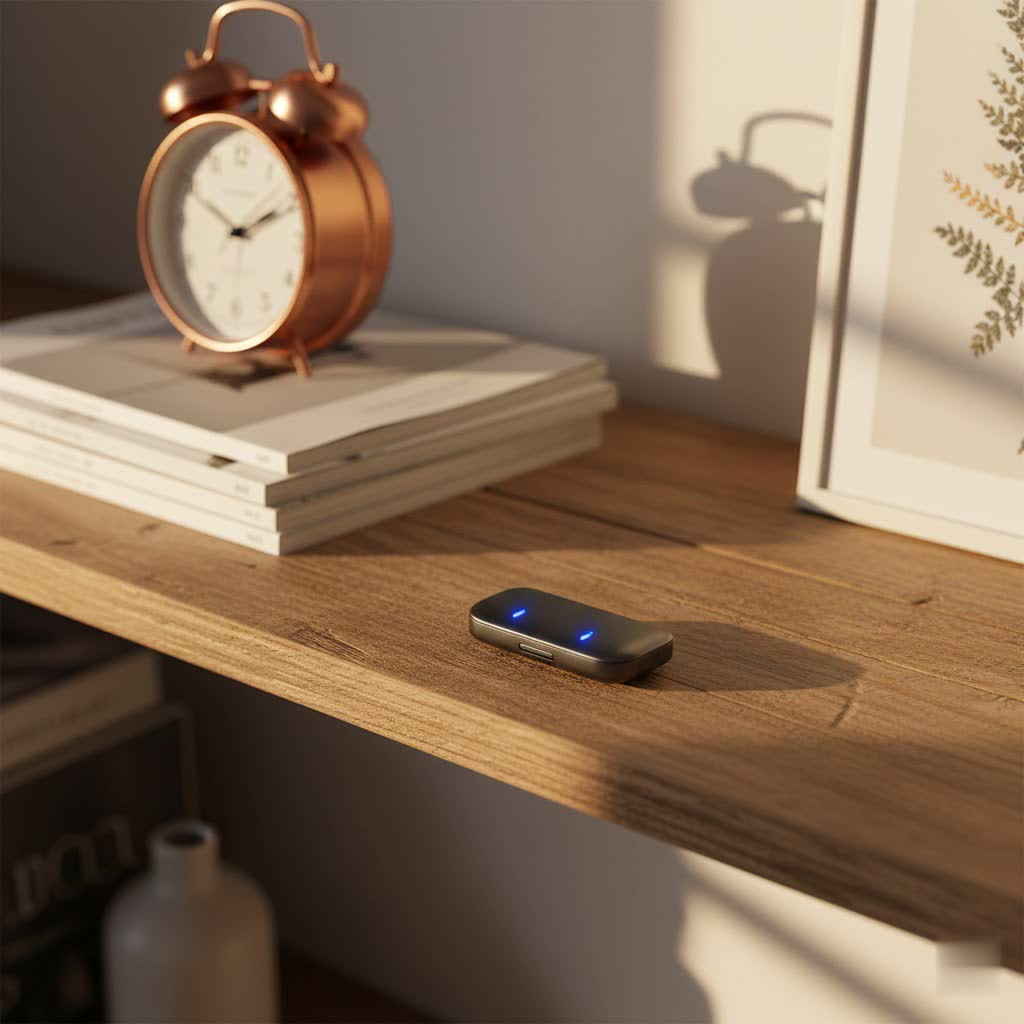
What Exactly is a Bluetooth Dongle?
Simply put, a Bluetooth dongle, also widely known as a Bluetooth adapter, is a compact external device, typically plugging into a USB port, designed to inject Bluetooth capability into hardware that lacks it. Think of it as a translator that allows your non-Bluetooth-enabled device to speak the universal language of Bluetooth. It acts as a radio transceiver, converting digital signals into wireless transmissions, bridging the gap between your computer or other devices and a vast array of Bluetooth peripherals like keyboards, mice, headphones, speakers, and even game controllers.
The functions of a Bluetooth dongle extend far beyond mere connection. It enhances device compatibility, breathing new life into older equipment that might not have built-in Bluetooth. This can save you from replacing perfectly functional, albeit older, devices. Furthermore, these dongles are celebrated for their convenience, usually offering a plug-and-play experience that requires minimal installation effort. They are portable, making them ideal for those who switch between workspaces or devices frequently.
Different Types of Bluetooth Dongles
While the term “Bluetooth dongle” often brings to mind a small USB stick, there are nuances in their form factors and capabilities:
- USB Dongles: These are by far the most common type, resembling a tiny USB flash drive. They plug directly into any available USB port on your computer, laptop, or other compatible device. Their portability and ease of use make them a popular choice for most users.
- PCI-e Adapters: For desktop computers, you might also encounter internal PCI Express (PCI-e) cards. These adapters install directly into your motherboard’s expansion slot and often integrate Wi-Fi capabilities alongside Bluetooth. While they offer a more permanent and often higher-performance solution, they require opening up your computer for installation. Our focus here, however, remains on the more accessible external dongles.
- Bluetooth Classes and Range: Dongles are categorized by “classes” which primarily dictate their maximum communication range:
- Class 1: These are the long-range champions, capable of maintaining connections up to 100 meters (about 330 feet) or more in open space. They are ideal for large rooms or situations where your devices are far apart.
- Class 2: The most common type, Class 2 dongles offer a typical range of about 10 meters (30-33 feet), perfect for most home and office setups.
- Class 3: With a very limited range of around 1 meter (3 feet), these are less common for general-purpose dongles and usually found in specialized applications.
How to Choose the Right Bluetooth Dongle for Your Needs
Selecting the perfect Bluetooth dongle isn’t a one-size-fits-all situation. It depends heavily on your specific requirements and devices. Here’s what you should consider:
Bluetooth Version Matters (5.0, 5.1, 5.2, 5.3, 5.4)
|
Our Picks for the Best Bluetooth Dongle in 2026
As an Amazon Associate I earn from qualifying purchases.
|
||
| Num | Product | Action |
|---|---|---|
| 1 | TP-Link USB Bluetooth Adapter for PC - Bluetooth 5.4 Dongle Receiver, Plug and Play, Nano Design, EDR & BLE, Supports Windows 11/10/8.1/7 for Desktop, Laptop, Keyboard, Mouse, etc (UB500) |

|
| 2 | Fardriver Bluetooth Dongle,Programmable Adapter,Bluetooth Dongle for Ebike Controller,Compatible with Fardriver Controller |
|
| 3 | UGREEN USB Bluetooth 5.3 Adapter for PC, Plug & Play for Windows 11/10/8.1, Bluetooth Receiver & Transmitter for Keyboard/Mouse/Headphone/Speakers/Printer |
|
| 4 | Fardriver Programmable Wireless Adapter Dongle Fardriver Controller Programming Module |
|
| 5 | TP-Link USB Bluetooth Adapter for PC, Bluetooth 5.3 Long Range Receiver, Plug and Play, Adjustable Antenna, Supports Windows 11/10/8.1/7 for Desktop, Laptop, Keyboard, Mouse, etc (UB500 Plus) |
|
| 6 | Avantree DG45 USB Bluetooth Adapter Dongle for PC, Computer, Desktop & Laptop, Compatible with Windows 11/10/8.1/8 Only - Connects Bluetooth Headphones, Speakers, Keyboards, Mice & Printers (Not 2.4G) |
|
| 7 | Ebike Programmable Bluetooth Dongle for Fardriver Controller,Bluetooth Adapter,Compatible with Soleil01 Electric Bicycles |
|
| 8 | ASUS USB-BT500 USB Adapter with Ultra Small Design, Bluetooth 5, Backward Compatible with Bluetooth®2.1/3.x/4.x, TAA Compliant (USB-BT500) |
|
| 9 | Fardriver Programmable Bluetooth Dongle for Fardriver Controller, Bluetooth Adapter Compatible with Fardriver E Bike Programming Module |
|
| 10 | Fardriver Programmable Bluetooth Dongle Controller for E-Bike,Programmable Bluetooth Adapter Compatible with Fardriver E Bike |
|
The Bluetooth version supported by your dongle is paramount. Newer versions bring significant improvements in speed, range, and power efficiency (thanks to Bluetooth Low Energy, or BLE). For instance, Bluetooth 5.0, a popular standard, effectively doubles the speed and quadruples the range compared to Bluetooth 4.0, while also supporting connections to multiple devices more efficiently. If you’re looking to future-proof your setup, opt for dongles supporting Bluetooth 5.0 or later (5.1, 5.2, 5.3, 5.4 are increasingly common). These newer standards offer faster data transfers, lower latency, and more stable connections.
Compatibility (Operating System and USB Ports)
A Bluetooth dongle is useless if it doesn’t work with your computer.
- Operating System (OS): Ensure the dongle explicitly states compatibility with your OS—Windows (10, 11, and sometimes 8.1), macOS, and Linux. Most dongles are plug-and-play for Windows, but macOS and Linux may occasionally require specific drivers or configuration, particularly for advanced features or certain chipsets.
- USB Ports: While most dongles use USB, be mindful of USB 2.0 vs. USB 3.0 ports. While USB 3.0 offers higher bandwidth, it can sometimes introduce 2.4GHz radio frequency interference, potentially affecting Bluetooth signals. Often, using a USB 2.0 port or a direct connection (avoiding hubs) can provide a more stable Bluetooth connection.
Range and Signal Strength
Consider how far apart your devices will be. For typical desktop setups, a Class 2 dongle with its 10-meter range is usually sufficient. However, if you need to connect devices across rooms or in a larger space, a Class 1 dongle offering 100 meters or more will be essential. Some dongles also feature external antennas to boost signal strength and maintain stable connections over greater distances.
Audio Quality and Codecs
If your primary use for the Bluetooth dongle is audio streaming, pay close attention to supported audio codecs.
- aptX, aptX HD, aptX Low Latency (LL): These codecs significantly improve audio quality and reduce latency, which is crucial for gaming, watching videos, or even critical listening. aptX Low Latency, in particular, minimizes the delay between video and audio, preventing frustrating lip-sync issues.
- LDAC: For audiophiles seeking the highest possible resolution audio over Bluetooth, dongles supporting LDAC are a must. These deliver near-lossless audio quality, a true treat for your ears.
Specific Use Cases
Your intended use case should heavily influence your choice:
- Gaming: Low latency is king. Look for dongles supporting Bluetooth 5.0+ with aptX Low Latency. Every millisecond counts for a smooth gaming experience.
- High-Quality Audio: Prioritize dongles with advanced audio codecs like aptX HD or LDAC to ensure rich, clear sound.
- General Peripherals (Keyboard, Mouse): Most standard Bluetooth 4.0 or 5.0 dongles will work perfectly for these, offering reliable connectivity for everyday tasks.
“Choosing the right Bluetooth dongle is like picking the perfect tool for a job,” advises Sarah Chen, a Senior Wireless Solutions Architect at Qisac.com. “You need to understand what you want to achieve – be it lag-free gaming, crystal-clear audio, or simply basic wireless connectivity – and then match the dongle’s features to those specific needs. Don’t just grab the cheapest option; invest a little time in research, and you’ll thank yourself later.”
Step-by-Step Installation and Configuration of Your Bluetooth Dongle
Installing a Bluetooth dongle is usually straightforward, but the exact steps can vary slightly depending on your operating system.
On Windows
- Plug it in: Insert your Bluetooth dongle into an available USB port on your desktop or laptop. Avoid using USB hubs initially, as they can sometimes cause issues.
- Driver Installation: Modern Windows versions (10 and 11) often automatically detect and install the necessary drivers. You’ll usually see a notification confirming the installation.
- Verify Installation:
- Right-click the Start button and select “Device Manager.”
- Look for a “Bluetooth” entry. Expand it to see your newly installed dongle (it might be listed as a generic Bluetooth adapter or by its chipset name). If you see a yellow exclamation mark, it means drivers need attention. You can try right-clicking and selecting “Update driver.”
- Pairing Devices:
- Go to “Settings” > “Bluetooth & devices” (or “Devices” > “Bluetooth & other devices” on older Windows 10).
- Ensure “Bluetooth” is toggled “On.”
- Click “Add device” or “Add Bluetooth or other device.”
- Select “Bluetooth” from the options.
- Put your Bluetooth peripheral (headphones, mouse, keyboard) into pairing mode (consult its manual for how to do this, usually a button press).
- Select your device from the list that appears and follow the on-screen prompts to complete pairing.
On macOS
While macOS has built-in Bluetooth, sometimes users wish to use an external dongle, perhaps for a newer Bluetooth version or specific codec support. However, macOS generally prioritizes its internal Bluetooth, making external dongle usage less seamless.
- Plug it in: Insert the Bluetooth dongle into a USB port.
- Potential Driver Requirement: Some dongles may require specific macOS drivers, which you would download from the manufacturer’s website.
- Bluetooth Explorer (Developer Tool): For advanced users, Apple’s “Bluetooth Explorer” (part of Xcode’s “Hardware IO Tools for Xcode”) can sometimes be used to manage which Bluetooth adapter macOS uses. This involves a more technical setup.
- Re-pairing: Be aware that you might lose Bluetooth connectivity during the initial setup, and all devices will likely need to be re-paired. Also, macOS might not default to the external dongle after every reboot, requiring you to repeat configuration steps.
On Linux
Installation on Linux can vary more widely depending on your distribution and the dongle’s chipset.
- Plug it in: Insert the USB Bluetooth dongle.
- Check Recognition: Open a terminal and type
lsusbto see if your system recognizes the dongle. You can also usedmesg | grep -i bluetoothto check for kernel messages related to Bluetooth. - Driver/Firmware: Most modern Linux kernels include drivers for common Bluetooth chipsets. However, for some newer Bluetooth 5.0+ dongles, you might need to manually install firmware files. This usually involves downloading firmware from a repository (like
linux-firmware) and copying it to a specific directory (/lib/firmware). - Manage Bluetooth: Use a graphical Bluetooth manager like
Blueman(if available for your distribution) or command-line tools likebluetoothctlto manage devices and pairing. - Pairing: Similar to Windows, enable Bluetooth, put your peripheral in pairing mode, and scan for devices.
Troubleshooting Common Bluetooth Dongle Issues
Even with the best Bluetooth dongle, you might occasionally encounter connectivity hiccups. Here are some common problems and their solutions:
Device Not Pairing/Connecting
- Enabled Bluetooth? Double-check that Bluetooth is enabled on both your computer (via the dongle) and the device you’re trying to connect.
- Pairing Mode: Ensure your peripheral is in active pairing mode. This often involves holding a button until an LED flashes.
- Restart Devices: A simple restart of both your computer and the Bluetooth peripheral can resolve temporary glitches.
- Forget and Re-pair: If a device previously connected but now won’t, try “forgetting” the device from your computer’s Bluetooth settings and then re-pairing it from scratch.
- Update Drivers: On Windows, go to Device Manager, find your Bluetooth dongle, right-click, and select “Update driver.” You can choose to search automatically or browse your computer for drivers if you’ve downloaded them.
Poor Connection/Frequent Disconnections
- Interference: Bluetooth operates on the 2.4GHz frequency, which can be susceptible to interference from other devices like Wi-Fi routers, cordless phones, and even microwave ovens. Try to keep your Bluetooth dongle and devices away from these potential interference sources.
- USB 3.0 Interference: Surprisingly, USB 3.0 ports and devices can sometimes cause interference with 2.4GHz wireless signals. If possible, try using a USB 2.0 port for your Bluetooth dongle.
- Physical Obstacles: Walls, metal objects, and even your own body can weaken Bluetooth signals. Ensure a clear line of sight between your dongle and the connected device, if possible.
- Range Issues: Are your devices too far apart? Ensure they are within the optimal operating range of your dongle (e.g., 10 meters for Class 2).
- Try Different USB Port: A faulty USB port or a USB hub can sometimes cause issues. Plug your dongle directly into a different USB port on your computer.
Dongle Not Recognized/Working
- Physical Connection: Make sure the Bluetooth dongle is firmly seated in the USB port.
- Different USB Port: As mentioned, try another USB port.
- Reinstall/Update Drivers: If drivers are corrupted or missing, reinstalling them from the manufacturer’s website or updating them via Device Manager can help.
- OS Compatibility: Double-check that your dongle is compatible with your operating system version.
- Bluetooth Services (Windows): Ensure that the “Bluetooth Support Service” is running. You can check this by typing “services.msc” in the Run dialog (Windows + R), finding the service, and ensuring its Startup Type is “Automatic” and its Status is “Running.”
Top Considerations for the Best Bluetooth Dongles on the Market
When looking for the “best” Bluetooth dongle, it’s more about finding the best fit for you. While specific product recommendations can quickly become outdated, here’s what to keep in mind:
- Reputable Brands: Stick to well-known brands that specialize in connectivity solutions. These often offer better driver support and product reliability. Brands like ASUS, Creative, Avantree, UGREEN, and TP-Link are frequently mentioned for their quality.
- Latest Bluetooth Version: Always aim for Bluetooth 5.0 or higher. This guarantees you the best performance in terms of speed, range, and power efficiency, ensuring your dongle remains relevant for years to come. Bluetooth 5.4 adapters are becoming more available, offering even further enhancements.
- Specific Features: If audio quality and low latency are critical (e.g., for gaming or streaming), prioritize dongles that support codecs like aptX Low Latency or LDAC. For extended range, look for Class 1 dongles, possibly with an external antenna.
- Ease of Installation & Driver Support: A dongle that’s plug-and-play for your OS, or at least has readily available and easy-to-install drivers, will save you a lot of headaches. Check user reviews for comments on driver stability.
Frequently Asked Questions about Bluetooth Dongles
Q: Do I really need a Bluetooth dongle if my computer has built-in Bluetooth?
A: Not necessarily for basic connectivity. However, you might want one to upgrade to a newer Bluetooth version (e.g., from 4.0 to 5.0 for better range and speed), for specific codec support (like aptX LL), or to troubleshoot issues with your integrated Bluetooth.
Q: Can a Bluetooth dongle improve my existing Bluetooth connection?
A: Yes, potentially. If your built-in Bluetooth is an older version or experiences frequent interference, a newer Bluetooth dongle with a better antenna or a more advanced chipset can provide a more stable, faster, and longer-range connection.
Q: What’s the best Bluetooth version for gaming?
A: Bluetooth 5.0 or higher is recommended for gaming due to improved speed and stability. Crucially, look for dongles and headphones that support aptX Low Latency (LL) to minimize audio delay, which is vital for a responsive gaming experience.
Q: Are Bluetooth dongles compatible with all operating systems?
A: Most USB Bluetooth dongles are designed to be compatible with Windows, often Windows 8.1, 10, and 11. Compatibility with macOS and Linux can vary more and might require specific drivers or additional configuration steps, especially for advanced features. Always check the manufacturer’s specifications.
Q: How many devices can a single Bluetooth dongle connect to?
A: Most Bluetooth dongles can theoretically connect to up to 7 devices simultaneously. However, the practical experience might vary, especially with multiple high-bandwidth devices like audio streaming headphones. For optimal performance, you might want to limit the number of active connections.
Embrace a Wire-Free World with the Right Bluetooth Dongle
A Bluetooth dongle is a small yet mighty tool that brings immense wireless convenience to your digital life. From enhancing compatibility for legacy devices to unlocking advanced audio and gaming experiences, the right dongle can significantly upgrade your setup. By understanding the different types, key features, and installation nuances, you can confidently choose and deploy a Bluetooth dongle that perfectly fits your needs, allowing you to cut the cords and embrace true wireless freedom. Invest wisely, follow our tips, and get ready for a world of seamless connections!
