In today’s interconnected world, wireless freedom isn’t just a luxury; it’s an expectation. Yet, many of our beloved devices still lack built-in Bluetooth functionality or come with outdated versions that simply can’t keep up. That’s where the unsung hero, the Wireless Dongle Bluetooth, steps in, transforming your tech experience from tethered to truly wireless. At Qisac.com, we’ve spent over a decade unraveling the complexities of wireless technology, and we’re here to guide you through everything you need to know about these tiny but mighty adapters. Whether you’re aiming to connect a new headset to an old PC, enhance your audio quality, or boost your device’s wireless range, understanding the nuances of Bluetooth dongles is key to unlocking a world of effortless connectivity.
What Exactly Is a Wireless Bluetooth Dongle?
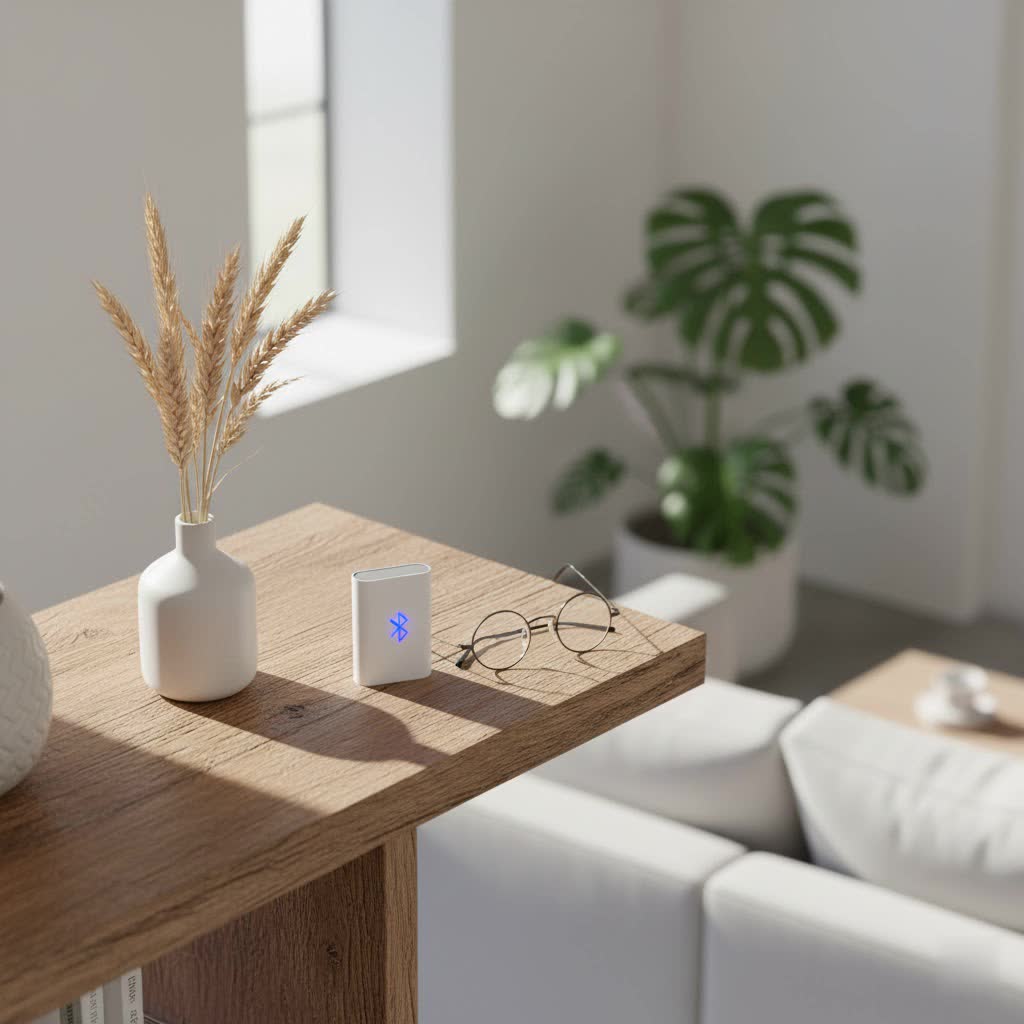
What is a Bluetooth Dongle? A Bluetooth dongle, often interchangeably called a Bluetooth adapter, is a compact external device, typically resembling a small USB stick, that empowers devices without integrated Bluetooth to communicate wirelessly with other Bluetooth-enabled gadgets. Think of it as a translator that allows your computer, for instance, to “speak” the language of your wireless headphones, mouse, keyboard, or even a game controller.
Its core function is to add or upgrade Bluetooth capabilities, effectively bridging the gap between older hardware and modern wireless standards. Internally, a Bluetooth dongle acts as a radio transceiver, converting digital signals from your device into 2.4-2.485 GHz wireless transmissions. This enables it to negotiate secure pairings, handle data encryption, and facilitate device discovery, making seamless wireless communication a reality. It’s a cost-effective and convenient solution to unlock wireless freedom without needing to replace your entire setup.
Decoding the Different Types of Bluetooth Dongles
What are the main types of Bluetooth dongles available? Bluetooth dongles primarily come in USB form factors, offering plug-and-play convenience, but you might also encounter internal PCI-e cards for desktop PCs and specialized adapters tailored for specific uses like enhanced audio or long-range connectivity.
The most common variant you’ll see is the USB Bluetooth adapter. These are incredibly versatile, plugging into any available USB port on your computer, laptop, or even some dedicated media devices. For desktop users looking for a more integrated solution, some manufacturers offer internal PCI-e (PCI Express) cards that combine Wi-Fi and Bluetooth capabilities, installed directly onto your motherboard.
Beyond the form factor, dongles are distinguished by their Bluetooth standard, which significantly impacts performance. We’ve seen an evolution from older standards like Bluetooth 2.0 and 3.0 to more modern versions:
- Bluetooth 4.0/4.2 (Bluetooth Low Energy – BLE): Introduced energy efficiency, making it ideal for smaller devices and wearables, but with more limited speed and range.
- Bluetooth 5.0: A major leap forward, doubling the speed, quadrupling the range, and offering eight times the broadcast messaging capacity compared to Bluetooth 4.2, all while maintaining low energy consumption.
- Bluetooth 5.1, 5.2, 5.3, and 5.4: These incremental updates further refine performance, improve connection stability, enhance security, and introduce features like LE Audio for superior sound quality and more efficient multi-stream audio.
“Choosing a dongle with Bluetooth 5.0 or higher is crucial for future-proofing your setup,” advises Alex Tran, Lead Connectivity Architect at Qisac.com. “The advancements in speed, range, and energy efficiency are simply too significant to ignore, especially as more peripherals adopt these newer standards.”
Then there are specialized dongles, designed for particular needs. Audio Bluetooth adapters, for example, often prioritize low latency codecs like aptX Low Latency (LL) or aptX HD for an uncompromised listening experience. You’ll also find long-range adapters (Class 1 Bluetooth), equipped with external antennas, capable of extending your wireless reach up to 100-150 meters, perfect for larger spaces or when device placement is flexible.
Choosing the Right Wireless Bluetooth Dongle for Your Needs
How do I select the perfect Bluetooth dongle for my setup? Selecting the ideal Bluetooth dongle involves considering compatibility with your operating system, the desired Bluetooth standard, your specific use case (like audio or gaming), the type of USB port available, and whether you prefer plug-and-play simplicity or advanced driver control.
Compatibility is Key
|
Our Picks for the Best Bluetooth Dongle in 2026
As an Amazon Associate I earn from qualifying purchases.
|
||
| Num | Product | Action |
|---|---|---|
| 1 | Fardriver Programmable Bluetooth Dongle Controller for E-Bike,Programmable Bluetooth Adapter Compatible with Fardriver E Bike |

|
| 2 | ASUS USB-BT500 USB Adapter with Ultra Small Design, Bluetooth 5, Backward Compatible with Bluetooth®2.1/3.x/4.x, TAA Compliant (USB-BT500) |
|
| 3 | Ebike Programmable Bluetooth Dongle for Fardriver Controller,Bluetooth Adapter,Compatible with Soleil01 Electric Bicycles |
|
| 4 | TP-Link USB Bluetooth Adapter for PC - Bluetooth 5.4 Dongle Receiver, Plug and Play, Nano Design, EDR & BLE, Supports Windows 11/10/8.1/7 for Desktop, Laptop, Keyboard, Mouse, etc (UB500) |
|
| 5 | Avantree DG45 USB Bluetooth Adapter Dongle for PC, Computer, Desktop & Laptop, Compatible with Windows 11/10/8.1/8 Only - Connects Bluetooth Headphones, Speakers, Keyboards, Mice & Printers (Not 2.4G) |
|
| 6 | Fardriver Programmable Wireless Adapter Dongle Fardriver Controller Programming Module |
|
| 7 | Fardriver Programmable Bluetooth Dongle for Fardriver Controller, Bluetooth Adapter Compatible with Fardriver E Bike Programming Module |
|
| 8 | TP-Link USB Bluetooth Adapter for PC, Bluetooth 5.3 Long Range Receiver, Plug and Play, Adjustable Antenna, Supports Windows 11/10/8.1/7 for Desktop, Laptop, Keyboard, Mouse, etc (UB500 Plus) |
|
| 9 | UGREEN USB Bluetooth 5.3 Adapter for PC, Plug & Play for Windows 11/10/8.1, Bluetooth Receiver & Transmitter for Keyboard/Mouse/Headphone/Speakers/Printer |
|
| 10 | Fardriver Bluetooth Dongle,Programmable Adapter,Bluetooth Dongle for Ebike Controller,Compatible with Fardriver Controller |
|
First and foremost, ensure the dongle is compatible with your operating system. Most modern dongles are designed for Windows 10 and 11, but if you’re on an older Windows version, macOS, or Linux, always double-check the manufacturer’s specifications for driver support. An incompatible dongle can lead to frustrating installation issues or limited functionality.
Bluetooth Standard Matters
As mentioned, the Bluetooth standard is paramount. Opting for a Bluetooth 5.0+ dongle is highly recommended. These newer versions offer:
- Faster Speeds: Essential for quick data transfers and responsive peripheral control.
- Longer Range: Providing more freedom to move your devices around without losing connection.
- Lower Power Consumption: Beneficial for connected devices like wireless headphones and for the dongle itself.
- Improved Stability: More robust connections, especially in crowded wireless environments.
While Bluetooth 4.0 dongles are cheaper, the performance gains of 5.0 and above are well worth the slight extra investment for a smoother, more reliable experience.
Your Use Case Defines Your Choice
- Audio Excellence: If your primary goal is high-quality wireless audio, look for dongles supporting advanced codecs like aptX Low Latency (LL) or aptX HD. These codecs significantly reduce audio delay, making them perfect for watching videos or gaming where lip-sync issues can be distracting. Dongles like the Creative BT-W5 or Sennheiser BTD 600 are excellent choices for audiophiles.
- Gaming Performance: For gamers, ultra-low latency is non-negotiable. Many standard Bluetooth connections, while fine for general use, introduce noticeable lag for competitive gaming. A dongle with aptX LL support, paired with compatible headphones, can dramatically cut down on this delay. Some gaming-focused dongles also support simultaneous connection of controllers and headsets with minimal impact.
- Extended Range: If you need to connect devices across rooms or in a larger office, a Class 1 Bluetooth dongle is what you need. These feature enhanced transmitting power and often an external antenna, pushing the range up to 100-150 meters, compared to the typical 10-meter range of Class 2 dongles. Look for products like the Techkey 150M or ZEXMTE Long Range adapters.
- Multi-Device Connectivity: If you plan to connect several devices simultaneously (e.g., keyboard, mouse, headset, and phone), ensure the dongle specifies support for multiple connections. Some robust adapters can handle up to seven devices concurrently.
USB Port Wisdom
Always try to plug your Bluetooth dongle into a USB 3.0+ port if available. While most dongles work with USB 2.0, high-bitrate audio and video streams can sometimes be bottlenecked by the slower USB 2.0 throughput (480 Mbps). Additionally, avoid using USB hubs if possible. Direct port connections minimize interference from other peripherals and ensure stable bandwidth.
Driver-Free Convenience vs. Advanced Control
Many modern Bluetooth dongles boast “plug-and-play” or “driver-free” operation, meaning your operating system automatically installs the necessary drivers. This offers great convenience. However, some advanced dongles might require specific drivers or software from the manufacturer to unlock their full feature set, such as advanced codec support or custom profiles. Decide if ease of use or maximum feature control is more important to you.
Step-by-Step: Installing and Configuring Your Bluetooth Dongle
How do I install a new wireless Bluetooth dongle on my computer? Installing a Bluetooth dongle is usually a straightforward process, often involving just plugging it in and letting your operating system handle the rest. However, sometimes manual driver installation or specific pairing steps are needed.
For Windows (10/11)
- Plug it in: Simply insert your wireless dongle Bluetooth into an available USB port on your computer. It’s often best to choose a rear port on a desktop to avoid interference and ensure a stable connection.
- Automatic Driver Installation: For most modern dongles and Windows 10/11, the operating system will automatically detect the new hardware and attempt to install the necessary drivers. You might see a notification indicating “Device setup complete” or “Installing device drivers.”
- Manual Driver Installation (if needed): If Windows doesn’t recognize the dongle or if you experience issues, you’ll need to install drivers manually.
- Manufacturer’s Website: Visit the dongle manufacturer’s support or download page. Locate your specific model and download the latest drivers for your Windows version (32-bit or 64-bit).
- Device Manager: Press
Windows Key + Xand select “Device Manager.” Look under “Bluetooth” or “Other devices” for your dongle. If it has a yellow exclamation mark, right-click and select “Update driver,” then choose to “Browse my computer for drivers” and point it to the downloaded files. You might also need to right-click and “Disable device” on any pre-existing, conflicting Bluetooth adapters.
- Pairing a Device: Once the dongle is recognized and drivers are installed:
- Go to
Settings > Bluetooth & devices(on Windows 11) orSettings > Devices > Bluetooth & other devices(on Windows 10). - Ensure the Bluetooth toggle is switched “On.”
- Click “Add device” or “Add Bluetooth or other device,” then select “Bluetooth.”
- Put your desired Bluetooth peripheral (headphones, mouse, etc.) into pairing mode. Refer to your device’s manual for specific instructions – usually, it involves holding down a button until an LED flashes.
- Your computer should detect the device. Select it from the list and follow any on-screen prompts to complete the pairing.
- Go to
For macOS and Linux
While the general principle is the same (plugging in and pairing), specific steps can vary.
- macOS: Many USB dongles are natively supported. You can check
System Settings > Bluetoothto see if it’s recognized. If your Mac already has built-in Bluetooth, an external dongle might require specific software or settings to override the internal adapter. - Linux: Compatibility often depends on the dongle’s chipset and your Linux distribution’s kernel support. Many popular chipsets work out-of-the-box. If not, you may need to install specific kernel modules or drivers. Consulting forums or the manufacturer’s Linux support page is often the best course of action.
“When in doubt, always start with the manufacturer’s official support resources,” recommends Dr. Lena Kim, a senior hardware engineer at Qisac.com. “They provide the most accurate and up-to-date drivers and installation guides for their specific products.”
Troubleshooting Common Wireless Bluetooth Dongle Issues
Why isn’t my Bluetooth dongle working or connecting properly? Common issues with wireless Bluetooth dongles often stem from driver problems, physical connection faults, wireless interference, or an incompatible Bluetooth standard, all of which can usually be resolved with systematic troubleshooting.
Experiencing glitches with your wireless dongle Bluetooth can be frustrating, but many common problems have straightforward solutions:
Device Not Recognized or Not Working
- Re-plug and Different Ports: First, try unplugging the dongle and plugging it back in firmly. If that doesn’t work, try a different USB port. Sometimes a port might be faulty or temporarily inactive.
- Driver Issues:
- Check Device Manager (Windows): Open Device Manager (search for it in the Start Menu). Look under “Bluetooth” for your dongle. If you see a yellow exclamation mark or “Unknown Device,” the drivers might be missing or corrupted. Right-click and choose “Update driver” or “Uninstall device” and then restart your computer to allow Windows to reinstall it.
- Install/Reinstall Drivers: Download the latest drivers from the manufacturer’s website and perform a manual installation.
- Restart Your Computer: A simple restart can often resolve minor software conflicts or driver loading issues.
- Conflicting Bluetooth: If your computer has built-in Bluetooth, it might be conflicting with the dongle. In Device Manager, locate both Bluetooth adapters, right-click your built-in Bluetooth adapter, and select “Disable device.” Then, restart and see if the dongle works.
Poor Connection or Limited Range
- Interference: Bluetooth operates on the 2.4 GHz frequency, which is shared by Wi-Fi, cordless phones, and even microwaves.
- Avoid USB Hubs: As discussed, plugging the dongle directly into a PC port can reduce interference.
- Move Away: Keep the dongle away from other wireless transmitters or large metal objects.
- Distance and Obstructions: Ensure your device is within the dongle’s effective range. Class 2 dongles have about a 10-meter (33 feet) range, while Class 1 can go up to 100-150 meters. Walls, furniture, and even people can significantly reduce signal strength.
- Bluetooth Version Mismatch: For optimal performance (speed, range, stability), both your dongle and the connected device should ideally support the same or compatible Bluetooth versions. A Bluetooth 5.0 dongle connected to a Bluetooth 4.0 headset will only perform at the 4.0 standard.
Audio Lag/Latency
- Codec Support: For critical applications like gaming or video, look for both your dongle and audio device to support low-latency codecs like aptX LL. Standard Bluetooth audio inherently has some latency, but aptX LL can significantly minimize this.
- Dedicated Audio Dongles: If audio quality and low latency are paramount, consider a dedicated audio-focused Bluetooth dongle.
Device Pairing Failures
- Check Pairing Mode: Ensure your peripheral device (headphones, mouse) is actually in pairing mode. Consult its manual.
- Reset Devices: Sometimes resetting both the dongle (by unplugging/re-plugging or reinstalling drivers) and the peripheral device can resolve pairing issues.
- “Forget” Device: On your computer’s Bluetooth settings, remove any previous pairings with the device and try connecting again.
Top Picks: Recommended Wireless Bluetooth Dongles on the Market
What are the best Bluetooth dongles to buy right now? The best Bluetooth dongles on the market cater to various needs, from budget-friendly and reliable all-rounders to specialized adapters for audiophiles, gamers, or those requiring extended range.
With a myriad of options available, selecting the “best” wireless dongle Bluetooth depends heavily on your specific requirements. Here are some highly-regarded options that offer excellent performance and value:
- UGREEN Bluetooth 5.4 Adapter (Overall Best): Often lauded for its compact design, affordability, and robust Bluetooth 5.4 technology, the UGREEN adapter delivers fast, reliable connections and impressive data transmission rates. It’s an excellent all-rounder for most users looking for a modern, plug-and-play solution, supporting Windows 8.1, 10, and 11, and can even connect up to seven devices simultaneously.
- ASUS USB-BT500 (Budget-Friendly & Reliable): Combining Bluetooth 5.0 with Enhanced Data Rate (EDR), the ASUS USB-BT500 is a fantastic budget pick. It offers speeds up to 3MBps and can pair with up to seven devices, making it an ideal, hassle-free solution for home users.
- Creative BT-W5 / Sennheiser BTD 600 (Audio & Low Latency): For those prioritizing superior sound quality and minimal lag, these adapters are champions. The Creative BT-W5 excels with hi-res 96kHz/24-bit audio and supports various codecs including aptX Adaptive. Similarly, the Sennheiser BTD 600 is designed for optimal performance with wireless headphones, boasting extremely low latency and excellent audio range, often leveraging advanced codecs for a truly immersive listening experience.
- Techkey 150M Class 1 Long Range / ZEXMTE Long Range USB Bluetooth 5.0 Adapter (Extended Range): If you need to span greater distances, these Class 1 dongles are built for the task. Featuring external antennas, they can offer up to 100-150 meters of range, ideal for large rooms or connecting devices across your home or office. The ZEXMTE model also includes aptX Low Latency and EDR support, ensuring lag-free audio even at a distance, provided your peripherals are also Class 1 compatible.
When making your choice, consider these expert insights. “For general desktop use, a Bluetooth 5.0 or 5.1 dongle like the ASUS BT500 offers a great balance of features and cost,” says Alex Tran. “However, gamers and audiophiles should definitely invest in a dongle with aptX Low Latency or Adaptive support for a truly uncompromised experience.”
Frequently Asked Questions
What’s the difference between Bluetooth 4.0 and 5.0 dongles?
Bluetooth 5.0 dongles offer significant improvements over 4.0, including double the speed, four times the range, and eight times the broadcast capacity, along with enhanced energy efficiency. This means faster data transfers, more reliable connections over greater distances, and better battery life for connected devices.
Can a wireless Bluetooth dongle be used for gaming?
Yes, absolutely! Many gamers use Bluetooth dongles to connect wireless controllers, headsets, and other peripherals to their PCs. For the best gaming experience, particularly for audio, look for dongles that support aptX Low Latency (LL) to minimize audio lag, and ensure your headset also supports this codec.
Do I need to install drivers for my Bluetooth dongle?
Many modern Bluetooth dongles are plug-and-play, especially on Windows 10 and 11, with drivers installing automatically. However, for older operating systems, or if your dongle has advanced features (like specific audio codecs), you might need to download and install drivers manually from the manufacturer’s website to ensure full functionality.
How far can a Bluetooth dongle reach?
The range of a Bluetooth dongle depends on its “class.” Most common dongles are Class 2, offering a range of about 10 meters (33 feet). Class 1 dongles, often equipped with external antennas, provide a much greater range, typically up to 100-150 meters (330-500 feet) in open space.
Can I use a Bluetooth dongle with a TV or car stereo?
Yes, certain Bluetooth dongles are designed for audio transmission to TVs or car stereos, allowing you to stream audio wirelessly from your phone or other devices. These often have specific inputs/outputs (like AUX or RCA) in addition to USB, or are designed to transmit audio from a source (like a TV) to Bluetooth headphones.
Why is my Bluetooth audio lagging?
Audio lag, or latency, can occur due to several factors. It’s often an inherent characteristic of standard Bluetooth audio. To reduce lag, ensure both your dongle and audio device support low-latency codecs like aptX LL. Interference from other wireless devices, excessive distance, or a lower-quality dongle can also contribute to audio delays.
Embrace Your Wireless Freedom with Qisac.com
The wireless dongle Bluetooth is more than just a small piece of hardware; it’s your key to unlocking a world of effortless wireless connectivity. Whether you’re upgrading an older machine, enhancing your audio experience, or simply seeking more flexibility in your digital life, choosing the right dongle can make all the difference. From understanding the nuances of Bluetooth standards to seamless installation and troubleshooting, we hope this guide empowers you to make informed decisions. At Qisac.com, our mission is to provide you with the deepest insights and practical advice, transforming complex tech into accessible knowledge. Dive into the wireless world with confidence, and don’t hesitate to explore more of our expert content to maximize your Bluetooth potential. Share your experiences and join our community – because your wireless journey is our passion!
