Hey there, fellow tech enthusiasts and audiophiles! If you’re tired of your wireless audio sounding a bit… flat, or if you’re experiencing annoying lag when gaming or watching movies with your Bluetooth headphones, you’ve landed in the right spot. As a seasoned expert in the world of wireless connectivity and a content creator for Qisac.com, I’m here to demystify one of the most impactful upgrades you can make to your audio setup: the Aptx Bluetooth Dongle. This little device is a game-changer, promising a significant leap in sound quality and responsiveness that standard Bluetooth often falls short on.
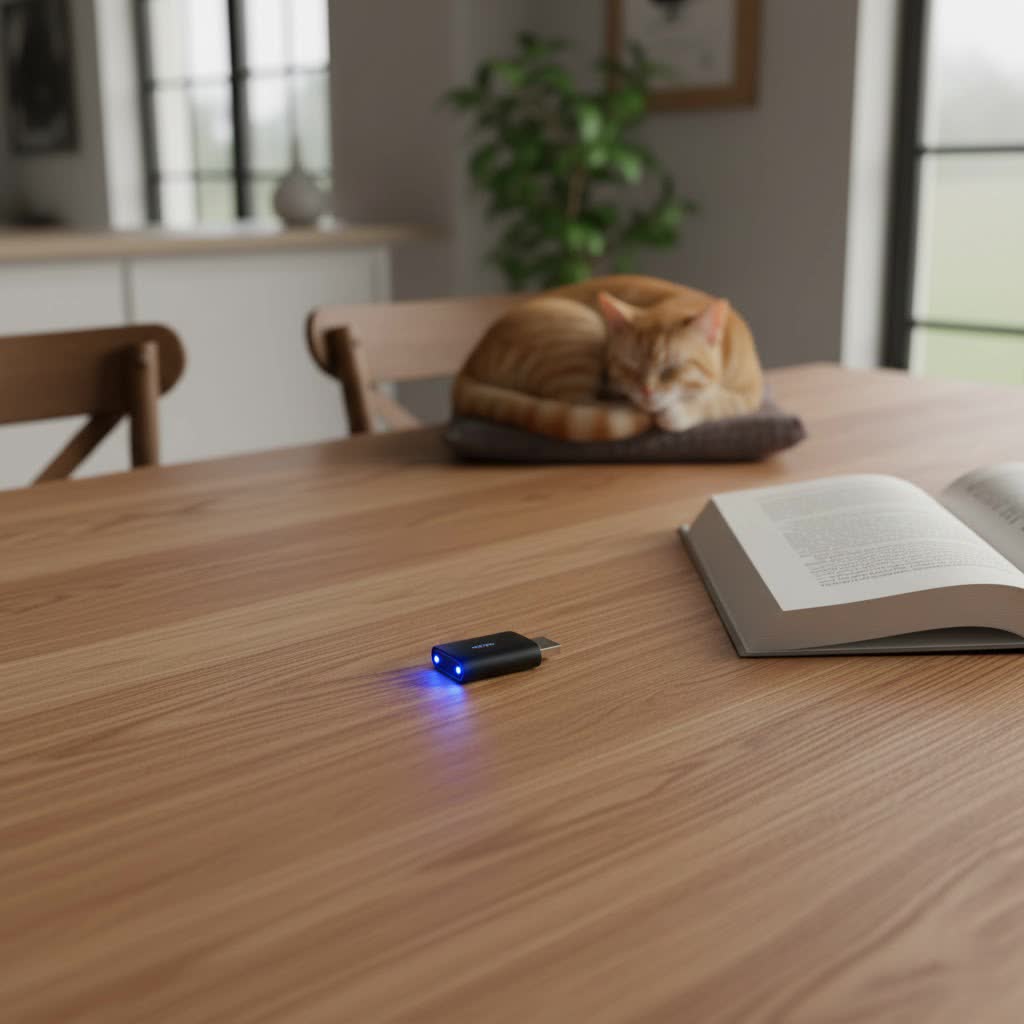
Why an aptX Bluetooth Dongle is a Game-Changer for Your Audio
You might be thinking, “Bluetooth is Bluetooth, right?” Not quite! While standard Bluetooth is incredibly convenient, it often uses a basic audio codec called SBC (Sub-band Codec) which compresses audio quite aggressively. This compression can lead to a noticeable loss in sound fidelity and introduce frustrating delays, especially if you’re a discerning listener or a keen gamer.
This is where aptX steps in. Developed by Qualcomm, aptX is a family of audio codecs designed to deliver higher fidelity sound with much lower latency over Bluetooth connections. Think of it as a smarter, more efficient way for your audio to travel wirelessly, preserving more of the original sound data and significantly reducing the time it takes to reach your ears. The result? Richer, clearer sound, and audio that stays perfectly in sync with your visuals.
The aptX Family: Decoding the Different Flavors
Not all aptX is created equal, and understanding the different versions is crucial for choosing the right aptX Bluetooth dongle:
- aptX: This is the foundational codec, offering a noticeable improvement over SBC with better sound quality and reduced compression artifacts.
- aptX Low Latency (LL): As the name suggests, this variant is engineered for minimal delay, often reducing latency to a mere 40 milliseconds or less. This is vital for real-time applications like gaming and watching videos where lip-sync issues can ruin the experience.
- aptX HD: For those who crave high-resolution audio, aptX HD supports 24-bit audio, delivering an even richer and more detailed soundscape. It’s like upgrading from standard definition to high definition for your ears.
- aptX Adaptive: This is Qualcomm’s latest and arguably most versatile codec. It dynamically adjusts its compression and bitrate based on the content (music, video, gaming) and the surrounding radio frequency environment. This means you get the best of both worlds: high-quality audio and low latency, adapting seamlessly to ensure a robust and consistent connection. It effectively combines the benefits of aptX HD and aptX Low Latency.
- aptX Lossless: The newest frontier in Bluetooth audio, aptX Lossless aims to deliver truly lossless CD-quality audio wirelessly, though it’s still emerging in the market.
|
Our Picks for the Best Bluetooth Dongle in 2026
As an Amazon Associate I earn from qualifying purchases.
|
||
| Num | Product | Action |
|---|---|---|
| 1 | Fardriver Programmable Bluetooth Dongle Controller for E-Bike,Programmable Bluetooth Adapter Compatible with Fardriver E Bike |

|
| 2 | Fardriver Bluetooth Dongle,Programmable Adapter,Bluetooth Dongle for Ebike Controller,Compatible with Fardriver Controller |
|
| 3 | TP-Link USB Bluetooth Adapter for PC - Bluetooth 5.4 Dongle Receiver, Plug and Play, Nano Design, EDR & BLE, Supports Windows 11/10/8.1/7 for Desktop, Laptop, Keyboard, Mouse, etc (UB500) |
|
| 4 | Fardriver Programmable Wireless Adapter Dongle Fardriver Controller Programming Module |
|
| 5 | Avantree DG45 USB Bluetooth Adapter Dongle for PC, Computer, Desktop & Laptop, Compatible with Windows 11/10/8.1/8 Only - Connects Bluetooth Headphones, Speakers, Keyboards, Mice & Printers (Not 2.4G) |
|
| 6 | UGREEN USB Bluetooth 5.3 Adapter for PC, Plug & Play for Windows 11/10/8.1, Bluetooth Receiver & Transmitter for Keyboard/Mouse/Headphone/Speakers/Printer |
|
| 7 | Ebike Programmable Bluetooth Dongle for Fardriver Controller,Bluetooth Adapter,Compatible with Soleil01 Electric Bicycles |
|
| 8 | ASUS USB-BT500 USB Adapter with Ultra Small Design, Bluetooth 5, Backward Compatible with Bluetooth®2.1/3.x/4.x, TAA Compliant (USB-BT500) |
|
| 9 | Fardriver Programmable Bluetooth Dongle for Fardriver Controller, Bluetooth Adapter Compatible with Fardriver E Bike Programming Module |
|
| 10 | TP-Link USB Bluetooth Adapter for PC, Bluetooth 5.3 Long Range Receiver, Plug and Play, Adjustable Antenna, Supports Windows 11/10/8.1/7 for Desktop, Laptop, Keyboard, Mouse, etc (UB500 Plus) |
|
“The evolution of aptX has fundamentally changed what we expect from wireless audio. It’s no longer just about convenience; it’s about uncompromising quality and responsiveness,” says Dr. Anya Sharma, a leading audio technology researcher at the Qisac Labs.
Choosing the Right aptX Bluetooth Dongle for Your Needs
Selecting the perfect aptX Bluetooth dongle involves a few key considerations to ensure optimal performance and compatibility.
1. Compatibility is Non-Negotiable
This is the golden rule: both your transmitting device (your computer, game console, dongle) and your receiving device (your Bluetooth headphones or speakers) must support the same aptX codec to benefit from its advantages. If your headphones only support aptX HD, and your dongle only supports standard aptX, they will fall back to the lowest common denominator (likely standard aptX or even SBC). Always check the specifications of all your devices.
2. Transmitters vs. Receivers
Bluetooth dongles can serve different purposes:
- Bluetooth Transmitters: These are what you’ll typically use to add Bluetooth capabilities to a non-Bluetooth device like your PC, TV, or game console (e.g., PS5). They send audio from your device to your Bluetooth headphones or speakers.
- Bluetooth Receivers: If you want to bring wireless streaming to your older wired stereo system or non-Bluetooth speakers, a receiver is what you need. It picks up audio from your Bluetooth-enabled phone or tablet and sends it to your wired audio setup. Some high-end receivers, like the Audioengine B1 or FiiO BTR7, also support aptX HD for superior sound quality.
3. Consider Your Primary Use Case
- For Gaming & Video: An aptX Low Latency Bluetooth dongle or, even better, an aptX Adaptive Bluetooth dongle is essential. These minimize audio delay, preventing frustrating lip-sync issues and ensuring your in-game sounds are instantaneous.
- For High-Quality Music Listening: An aptX HD Bluetooth dongle or aptX Adaptive Bluetooth dongle will provide the best audio fidelity, especially if you listen to lossless or high-resolution music files.
- For General Use & Productivity: A standard aptX dongle can still offer a significant upgrade over SBC for everyday tasks, improving call quality and general media consumption.
4. USB-A, USB-C, or Internal?
Most aptX Bluetooth dongles come as small USB adapters. You’ll find both USB-A and newer USB-C options. USB-C dongles, like the Creative BT-W5 or Sennheiser BTD 700, are great for modern laptops and devices. If your PC lacks Bluetooth entirely, a USB dongle is the easiest way to add it. For older PCs, some internal PCI-e cards might also support aptX, but external dongles offer more flexibility.
Setting Up Your aptX Bluetooth Dongle: A Quick Guide
Getting your aptX Bluetooth dongle up and running is usually a straightforward process. Here’s a general overview:
On Windows PC:
- Plug it In: Insert the aptX Bluetooth dongle into an available USB port on your PC.
- Driver Installation: For most modern dongles and Windows 10/11, drivers will install automatically. However, for some older Intel chipsets, you might need to manually install specific aptX drivers to enable the codec. Check the manufacturer’s website for your dongle or PC’s Bluetooth adapter.
- Pairing Mode: Put your Bluetooth headphones or speakers into pairing mode. (Refer to your device’s manual).
- Connect: On your PC, go to
Settings > Devices > Bluetooth & other devices, ensure Bluetooth is “On,” and click “Add Bluetooth or other device.” Select “Bluetooth” and choose your audio device from the list. - Verify Codec (Optional): Some third-party tools or Windows developer settings can help you verify which aptX codec is actively being used. This confirms you’re getting the intended high-quality audio.
On macOS:
macOS typically handles Bluetooth codecs efficiently. Many Mac devices already support aptX natively. If you’re using an external dongle, the process is similar: plug it in, put your headphones in pairing mode, and connect via System Settings > Bluetooth.
On PlayStation 5 (or PS4):
Connecting an aptX Bluetooth dongle to a gaming console like the PS5 usually involves specific steps, as standard console Bluetooth often doesn’t support advanced codecs.
- Insert Dongle: Plug the aptX Bluetooth dongle (like the Avantree DG80P) into a free USB port on your PS5.
- Pairing Mode: The dongle might automatically enter pairing mode (LED flashing blue/white). If not, follow the dongle’s instructions to manually activate pairing mode.
- Headphone Pairing: Put your Bluetooth headphones into pairing mode.
- Audio Settings: Once connected (dongle LED turns solid), go to your PS5’s audio settings.
- Turn off “Switch Output Device Automatically.”
- Set the “Audio Output Device” to “USB Headset (DG80P)” or similar.
- Select “Controller Headset” as the input device if you plan to use the controller’s mic, or adjust input device as needed.
- Music vs. Talk Mode: Some gaming dongles offer different modes (e.g., music mode for best audio, talk mode for chat). Double-click the dongle’s multi-function button to switch between them.
Troubleshooting Common aptX Bluetooth Dongle Issues
Even with the best hardware, you might encounter a hiccup or two. Here’s how to troubleshoot common issues:
1. Poor Sound Quality or High Latency
- Check Codec Support: Double-check that both your aptX Bluetooth dongle and your headphones/speakers explicitly support the same aptX codec (e.g., both aptX Low Latency or both aptX HD/Adaptive). If there’s a mismatch, they’ll revert to a lower quality codec.
- Interference: Bluetooth operates on the 2.4 GHz frequency, which can be susceptible to interference from Wi-Fi routers, microwaves, and other wireless devices. Try moving closer to your dongle or reducing other wireless activity.
- Drivers: Ensure your Bluetooth drivers are up to date. For PCs, consider a clean reinstallation of the drivers if problems persist.
2. Dongle Not Recognized or Not Pairing
- USB Port: Try a different USB port. Sometimes, front panel USB ports can be less reliable than those directly on the motherboard.
- Restart: A simple restart of your computer or device can often resolve recognition issues.
- Dongle Status: Check the LED indicator on your dongle. Is it in pairing mode? Is it showing a connected status?
- Device Manager (Windows): Open Device Manager, expand “Bluetooth,” and ensure your dongle is listed without any error symbols.
3. Dropping Connections
- Range: Bluetooth has a limited range, typically around 10 meters (33 feet) for Class 2 devices. Walls and other obstructions can significantly reduce this. Some dongles are Class 1, offering up to 100 meters in ideal conditions.
- Battery Life: Ensure your headphones/speakers have sufficient battery charge. Low battery can affect connection stability.
- Firmware: Check if there are any firmware updates available for your Bluetooth headphones or the dongle itself.
Top Picks: Recommended aptX Bluetooth Dongles
As a content creator for Qisac.com, I’ve seen countless products come and go. Here are a few top-performing aptX Bluetooth dongles that stand out in the market:
- Creative BT-W5: This USB-C dongle is a fantastic choice for PC, Mac, PS5, and Xbox Series X users. It supports aptX Adaptive, automatically adjusting bitrate for optimal audio and low latency, making it ideal for gaming and high-res audio.
- Avantree DG80 / DG80P: Specifically designed for audio, these dongles excel at providing aptX Low Latency and FastStream support, perfect for lag-free wireless audio on PCs and PS5. The DG80P even offers dedicated music and talk modes.
- Sennheiser BTD 700: For the ultimate audio experience, this USB-C dongle supports aptX Adaptive and even the emerging aptX Lossless codec, upgrading your device’s Bluetooth capabilities for the highest resolution audio.
- UGREEN Bluetooth 5.3 Transmitter Audio Adapter (CM668): This transmitter offers aptX Adaptive and is well-suited for PS4/PS5/Switch or PC, providing high-quality audio for gaming and conference communication, including microphone support.
For those looking to add high-quality Bluetooth receiving capabilities to existing stereo systems, consider options like the Audioengine B1 (with Bluetooth 5.3 and aptX HD for superior range and quality) or the FiiO BTR7 (a premium receiver for audiophiles with balanced output, LDAC, and aptX HD support).
FAQs About aptX Bluetooth Dongles
Q: Do I need special headphones for an aptX Bluetooth dongle?
A: Yes, both your headphones/speakers and the aptX Bluetooth dongle must support the same aptX codec (e.g., aptX LL, aptX HD, or aptX Adaptive) to get the full benefits. If only one device supports aptX, they will default to a lower common codec like SBC.
Q: Will an aptX dongle work with my iPhone?
A: iPhones do not natively support aptX codecs. While an aptX Bluetooth dongle might work, it will likely use a standard codec like AAC (which iPhones support well) rather than aptX. For Android devices with Qualcomm chipsets, aptX support is more common.
Q: Is aptX better than regular Bluetooth?
A: Generally, yes. aptX offers superior audio quality due to more efficient compression and significantly lower latency compared to the standard SBC codec used by most basic Bluetooth connections. This results in clearer sound and better audio-visual synchronization.
Q: Can an aptX Bluetooth dongle improve my gaming experience?
A: Absolutely! An aptX Low Latency Bluetooth dongle or aptX Adaptive Bluetooth dongle is crucial for gaming. It drastically reduces audio delay, ensuring that game sounds, dialogue, and effects are perfectly synchronized with the on-screen action, giving you a more immersive and competitive edge.
Q: Do I need drivers to install an aptX Bluetooth dongle?
A: Most modern aptX Bluetooth dongles are plug-and-play on Windows 10/11 and macOS, with drivers installing automatically. However, for some older systems or specific Intel chipsets, manual driver installation might be necessary to fully enable aptX support. Always check the dongle manufacturer’s instructions.
Final Thoughts
The journey into high-quality wireless audio doesn’t have to be complicated. By understanding the power of an aptX Bluetooth dongle and how to choose and configure it, you can unlock a vastly superior listening experience. Whether you’re a gamer seeking zero-lag audio, an audiophile chasing pristine sound, or simply someone who appreciates crystal-clear communication, embracing aptX technology is a worthwhile upgrade. Dive in, experiment, and enjoy the freedom of truly premium wireless sound!
